File Converter for Mac
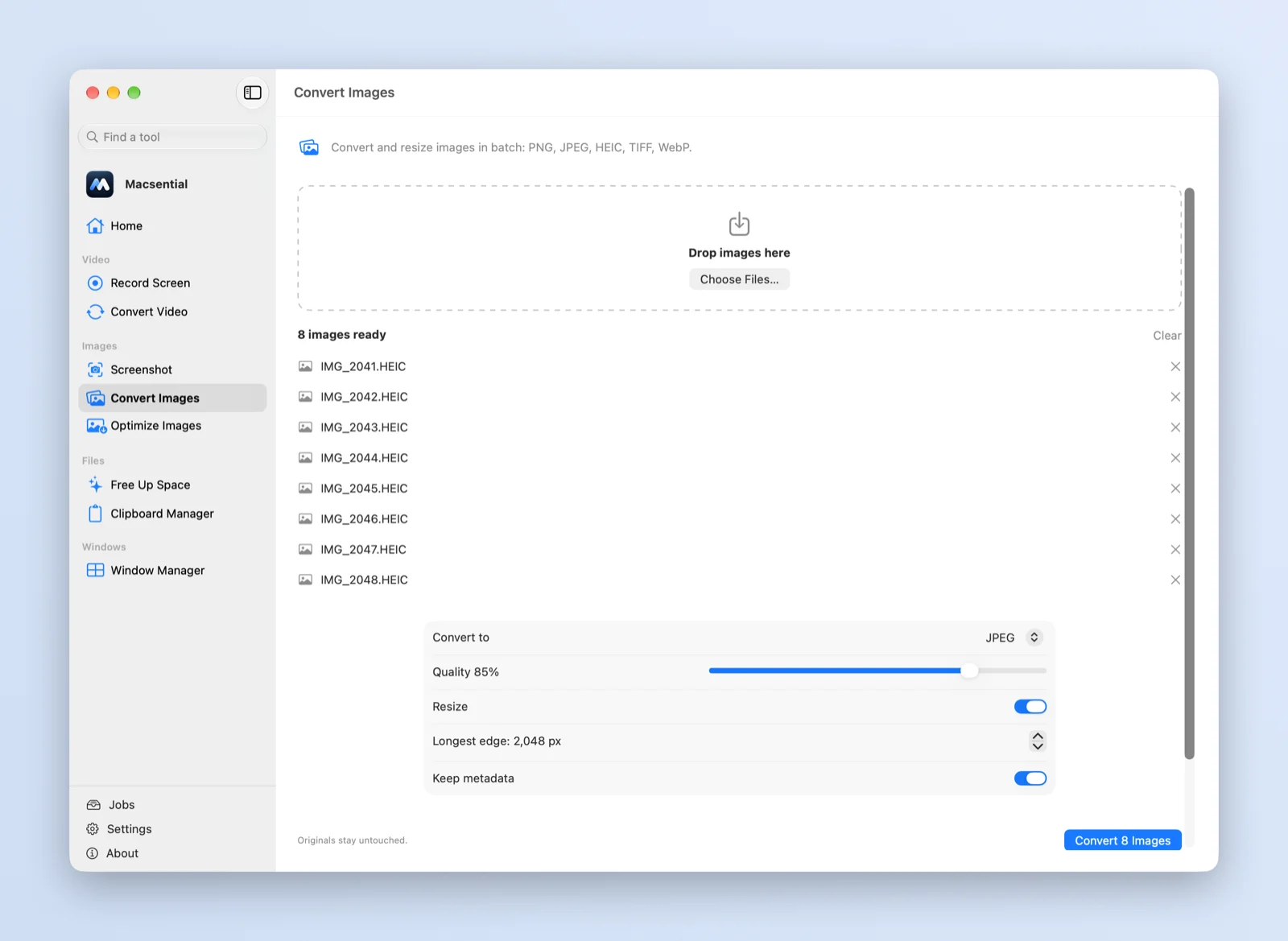
Drop a folder of photos or a few videos onto Macsential and convert them all at once. Images become PNG, JPEG, HEIC, TIFF or WebP; videos become MP4 or MOV. Everything is converted on your Mac, and your originals are never changed.
What it does
- Images to five formatsOpen any image macOS can read, including HEIC and WebP, and save it as PNG, JPEG, HEIC, TIFF or WebP.
- Video to MP4 or MOVConvert any movie macOS can play to MP4 or MOV, with H.264 for compatibility or HEVC for smaller files. Sound is kept.
- Whole batchesDrop many files at once. If one file can't be converted, the rest still are, and the job list tells you which one failed.
- Quality and sizeSet the quality for JPEG, HEIC and WebP, shrink images to a longest edge, or bring videos down to 1080p or 4K. Nothing is ever upscaled.
- Metadata your wayKeep camera, date and location data, or turn Keep metadata off to drop it. Orientation is kept either way, so photos don't turn sideways.
- From FinderRight-click files in Finder and choose Quick Actions ▸ Convert Images… or Convert Video… to open them in Macsential.
Safe by default
Converted files are saved as new files next to the originals (or in a folder you choose) and never replace them. Names never collide, and if a conversion fails or you cancel it, no half-written file is left behind.
WebP is written with Google's libwebp encoder, built into the app, because macOS can read WebP but not save it. Everything else uses the image and video frameworks in macOS, so there's nothing else to install.
Optimize Images
Next to the converter, Optimize Images makes PNG and JPEG files smaller without changing their format. By default it's lossless and removes camera, location and descriptive metadata. If the result isn't smaller, the original is kept as it is.
Keyboard shortcuts
The converter has no shortcuts of its own: you drop files on it or start it from Finder. One shortcut helps you get there.
| Action | Shortcut |
|---|---|
| Search for a tool in the menu-bar panel | ⌘K |
Related
- HEIC to PNG Turn iPhone photos into PNG files that open everywhere, without losing any quality.
- PNG to JPG Make screenshots and graphics small enough to email or upload, with control over quality.
- WEBP to JPG Turn images saved from the web into JPGs that every app and upload form accepts.
- PNG to WEBP Make images smaller for websites, keeping transparency, even though macOS can't save WebP.
- MOV to MP4 Turn QuickTime and iPhone movies into MP4 files that play on Windows, Android and the web.
- How to Convert HEIC to JPG on Mac (Batch) Convert HEIC photos to JPG on a Mac, one at a time or hundreds at once, with Preview, Photos, Finder Quick Actions, sips in Terminal or Macsential.
- Permute Permute converts far more formats, audio included. Macsential covers the common image and video conversions plus four more tools.
Questions
Which formats can it convert to?
Images to PNG, JPEG, HEIC, TIFF or WebP, and videos to MP4 or MOV with H.264 or HEVC. It reads any image or movie macOS can open. It doesn't convert audio files, documents or PDFs yet.
Are my files uploaded?
No. Conversion runs on your Mac with macOS's own frameworks, plus Google's WebP encoder built into the app. Nothing is sent anywhere.
Will it overwrite my originals?
No. Converted files are always new files with their own names, and a failed or cancelled conversion leaves nothing behind.
Does it keep EXIF and location data?
Yes, unless you turn Keep metadata off. With it off, camera, date and location data are dropped but the orientation is kept. Each conversion page shows what survived in our test.
Can it convert MKV or AVI videos?
Only files macOS itself can open, such as MP4, MOV and M4V. MKV isn't one of them: when we tried an MKV file, macOS couldn't open it.
Can I convert a whole folder at once?
Yes. Drop all the files at once and they're converted as one batch, several images in parallel and videos one after another.
Last updated