Screenshot Tool for Mac
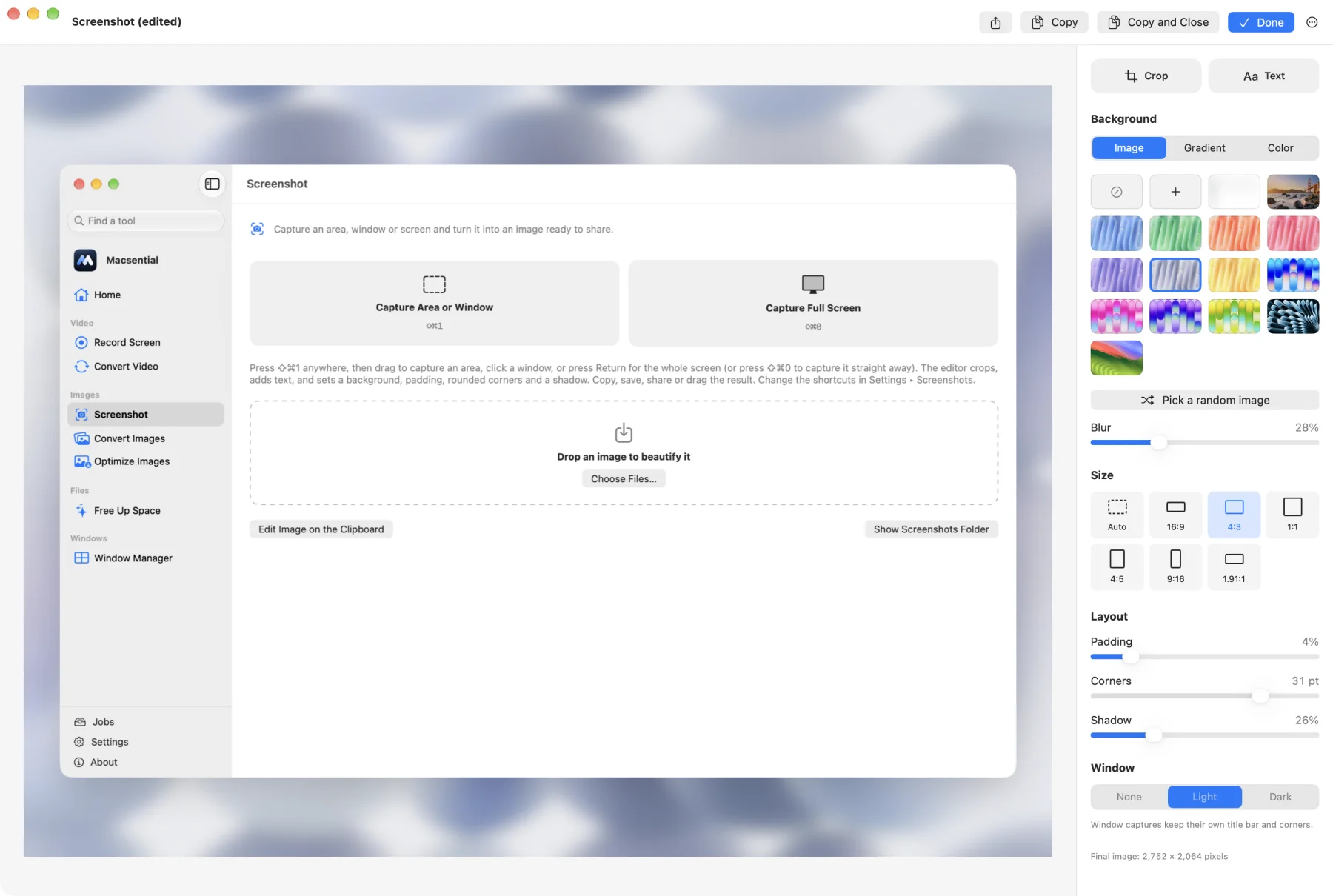
Press ⇧⌘1, drag an area or click a window, and the screenshot opens in an editor where you can crop it, add text and put it on a wallpaper, gradient or color. Copy it, share it or save a PNG or JPEG. Press ⌥⇧⌘1 instead to copy the text on screen.
What it does
- Area, window or screenDrag an area, click a window (its transparent corners are kept), or press Return for the whole display. ⇧⌘0 captures the screen under the pointer straight away.
- BackgroundsPut the screenshot on a macOS wallpaper, your own image, one of 12 gradients or 8 colors, or a blurred copy of itself.
- Padding, corners and shadowSet the padding, corner radius and shadow, add a light or dark window title bar, and pick an aspect such as 16:9, 1:1, 4:5 or 1.91:1.
- Text labels and cropPress T to add text in any color and size, with an optional rounded background. Press C to crop: the editor keeps the whole capture, so you can widen the crop later and your text stays put.
- Copy text from the screenPress ⌥⇧⌘1 and drag over an area, click a window or press Return: Macsential copies the text it finds instead of a picture. In the editor, Copy Text (⇧⌘C) copies the text inside the crop. Text is read on your Mac, in your languages, and nothing is uploaded.
- Copy, share or saveOpen the editor, copy or save straight away. Copy and save reuse the style you used last, and a thumbnail lets you open the editor afterwards.
Shortcuts that don't fight macOS
Macsential's capture shortcuts are ⇧⌘1, ⇧⌘0 and ⌥⇧⌘1 (Capture Text), not the ⇧⌘3, ⇧⌘4 and ⇧⌘5 macOS uses, so you can keep both. You can change or remove them in Settings ▸ Shortcuts, and Macsential warns you if a shortcut you pick is one macOS or another app already uses.
What it doesn't do
Text is the only markup: there are no arrows, shapes or blur tools, and no scrolling capture. Text recognition reads printed text, not QR codes or handwriting. Coming soon: blurring sensitive information (Macsential suggests emails, phone numbers, keys and faces to hide, and you can add your own areas), pinning a screenshot above your windows, and reading QR codes in Capture Text. Screenshots are saved as PNG or JPEG. By default Macsential picks JPEG when the background is a photo or a blur, and PNG otherwise.
Keyboard shortcuts
⇧⌘1, ⇧⌘0 and ⌥⇧⌘1 work from any app and can be changed in Settings. The others work in the capture overlay or the editor.
| Action | Shortcut |
|---|---|
| Capture an area or a window | ⇧⌘1 |
| Capture the screen under the pointer | ⇧⌘0 |
| Copy the text in an area, window or screen | ⌥⇧⌘1 |
| Capture the whole display (in the overlay) | Return |
| Cancel the capture or the crop | Esc |
| Add text | T |
| Crop | C |
| Copy the finished image | ⌘C |
| Copy the text in the screenshot | ⇧⌘C |
| Save and close | ⌘S |
| Save as | ⇧⌘S |
Related
- PNG to JPG Make screenshots and graphics small enough to email or upload, with control over quality.
- PNG to WEBP Make images smaller for websites, keeping transparency, even though macOS can't save WebP.
- Screen Recorder Record your screen, camera and sound, then add zooms, backgrounds and captions before you export.
Questions
Does it replace the built-in macOS screenshot shortcuts?
No. Macsential uses ⇧⌘1 for an area or window, ⇧⌘0 for the screen under the pointer and ⌥⇧⌘1 for Capture Text, so ⇧⌘3, ⇧⌘4 and ⇧⌘5 keep working. You can change these shortcuts in Settings ▸ Shortcuts.
Can I add a background to a screenshot I already have?
Yes. The editor opens existing images too, so you can put an older screenshot on a background and save it again. The original file isn't changed.
Can it copy text from the screen or from an image (OCR)?
Yes. Press ⌥⇧⌘1 and select an area, a window or the whole screen, and the text is copied to the clipboard in reading order. For a screenshot or an image you open in the editor, use Copy Text (⇧⌘C). Recognition runs on your Mac with Apple's Vision framework; nothing is uploaded.
Which file formats does it save?
PNG or JPEG. The default, Automatic, saves a JPEG when the background is a photo or a blur and a PNG otherwise. Copying puts the image on the clipboard as PNG and TIFF.
Can I annotate with arrows or blur sensitive parts?
No. Text labels are the only markup, on purpose: no arrows, shapes or blur. Crop out anything you don't want to share.
What permission does it need?
Screen Recording, which macOS asks for the first time you capture. Macsential opens the right System Settings pane for you.
Last updated