Convert PNG to JPG on Mac (Offline)
JPG files are what most upload forms, email clients and slide decks expect. Macsential converts PNG to JPG on your Mac with a quality slider, one file or a whole folder at a time.
Convert PNG to JPG in Macsential
- 1
Open Convert Images in Macsential's sidebar, or select the files in Finder and choose Quick Actions ▸ Convert Images….
- 2
Drop the files on the page, or click Choose Files…. You can add as many as you like.
- 3
Set Convert to to JPEG. Leave Quality at 85% or move the slider; higher is sharper and bigger. Turn Resize on only if you want smaller dimensions, and leave Keep metadata on to keep the camera, date and location data.
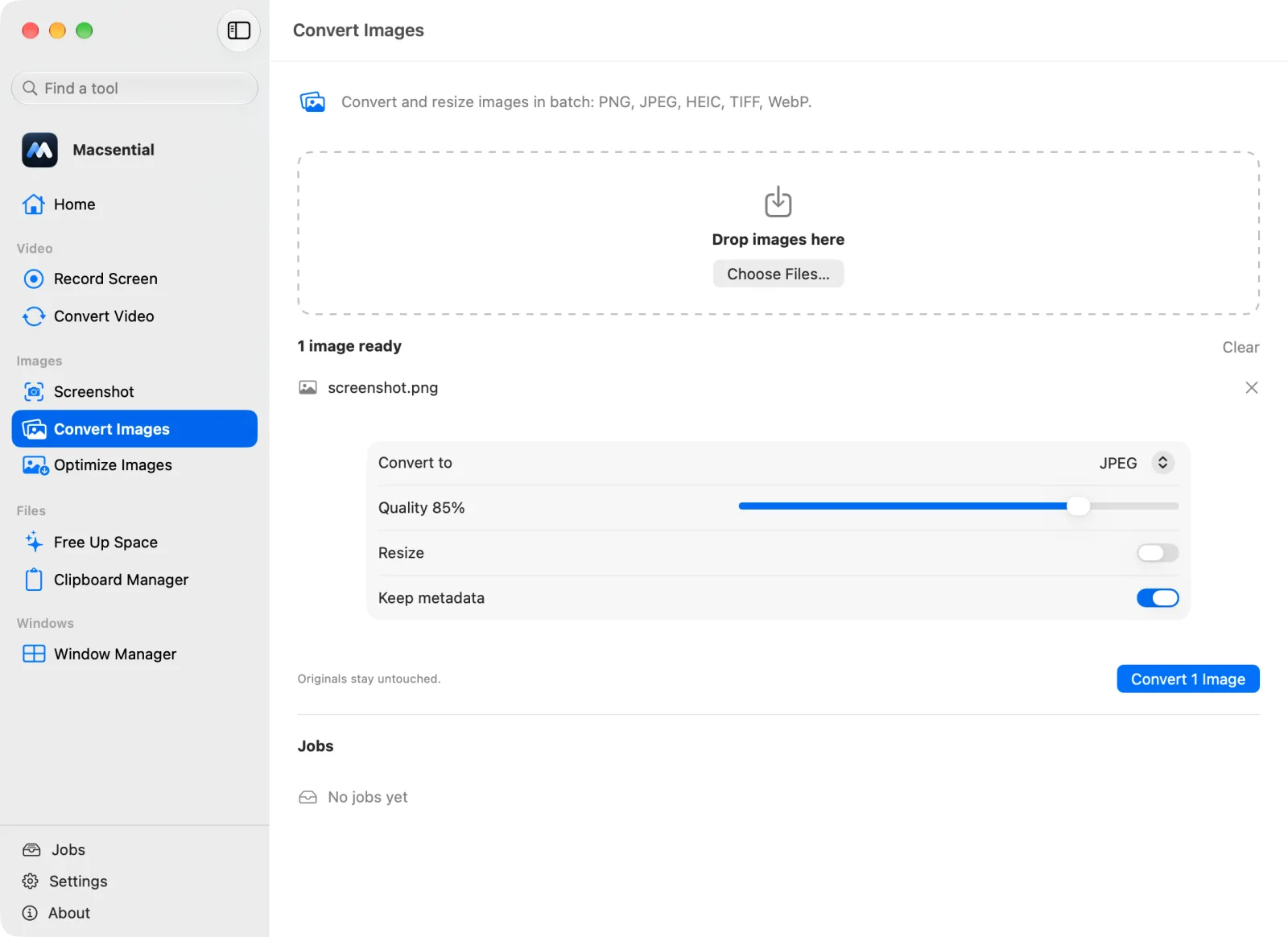
- 4
Click Convert. The .jpeg files are saved next to the originals, which aren't changed.
In our test
We converted a 531 KB Retina screenshot PNG to JPG at quality 85 %, and a small half-transparent PNG to see what happens to transparency.
| Sample | 2560 × 1440 PNG screenshot of the macsential.com home page (Retina, 2×) |
|---|---|
| Input | 531 KB, 2560 × 1440 px |
| Output | 347 KB (−35 %), 2560 × 1440 px |
| Settings | JPEG, quality 85 %, keep metadata on |
| Time | 0.06 s |
| Transparency | Transparent pixels turned white (separate test image) |
| Mac | Apple M1 Pro MacBook Pro, macOS 27.0.1 |
One sample file, measured with Macsential's converter on our Mac. Your files and Mac will give different numbers. How we measure
When PNG to JPG makes sense
Convert to JPG when a site or app only takes JPG, or when a PNG photo is too big to send. JPG is lossy, so keep the PNG if you'll edit the image again, and think twice for screenshots full of small text, which JPG compression can soften.
Quality, size and transparency
In our test the screenshot went from 531 KB to 347 KB (−35 %) at quality 85 %. Lower the quality for smaller files; around 85% is hard to tell apart from the original. JPG has no transparency: in our test, transparent pixels turned white. Macsential saves the files with the .jpeg extension, which is the same format as .jpg.
Metadata
Screenshots carry little metadata; our screenshot sample had none. PNGs exported from cameras or editors can carry camera and location data, and with Keep metadata on it's copied to the JPG. Turn the switch off to leave it out. The photo conversions, like JPG to PNG, show what survives from a real photo.
Batches
Drop a folder's worth of PNGs and they're all converted with the same quality. One unreadable file doesn't stop the rest, and the originals stay as they are.
With what's built into macOS
Preview can do it: open the PNG, choose File ▸ Export, pick JPEG and set the Quality slider. For several files, Finder's Quick Actions ▸ Convert Image converts them all to JPEG at once.
Where it falls short
- Finder's Convert Image has no quality setting.
- Preview's batch export works only for images opened together and selected in the sidebar, and Apple Community users report that it sometimes skips files.
Related conversions
- JPG to PNG Get a PNG copy of a photo for editing or for apps that require PNG, losing nothing further.
- PNG to WEBP Make images smaller for websites, keeping transparency, even though macOS can't save WebP.
- WEBP to JPG Turn images saved from the web into JPGs that every app and upload form accepts.
- HEIC to PNG Turn iPhone photos into PNG files that open everywhere, without losing any quality.
Questions
How do I convert PNG to JPG on a Mac?
In Preview, open the PNG, choose File ▸ Export, pick JPEG and click Save. For many files at once, use Finder's Quick Actions ▸ Convert Image or Macsential's Convert Images.
Does PNG to JPG lose quality?
Yes, a little: JPG is lossy. At quality 85% the difference is hard to see in photos, but sharp text and lines can get faint halos. Keep the PNG for images with lots of small text.
What happens to transparent areas?
JPG can't store transparency. In our test with Macsential, transparent pixels turned white. If you need transparency, convert to WebP or keep the PNG.
Will the JPG always be smaller than the PNG?
Usually, but it depends on the image: flat graphics with few colors compress well as PNG too. In our test a 531 KB screenshot became a 347 KB JPG at quality 85%.
Is .jpeg the same as .jpg?
Yes. They're two extensions for the same format. Macsential uses .jpeg, and every app that opens .jpg opens .jpeg.
Last updated