Window Manager for Mac
Move the front window to a half or a quarter of the screen, maximize it, center it or send it to another display, all from the keyboard. Press a half or corner shortcut again for a third, two-thirds and other sizes. Every shortcut can be changed or turned off.
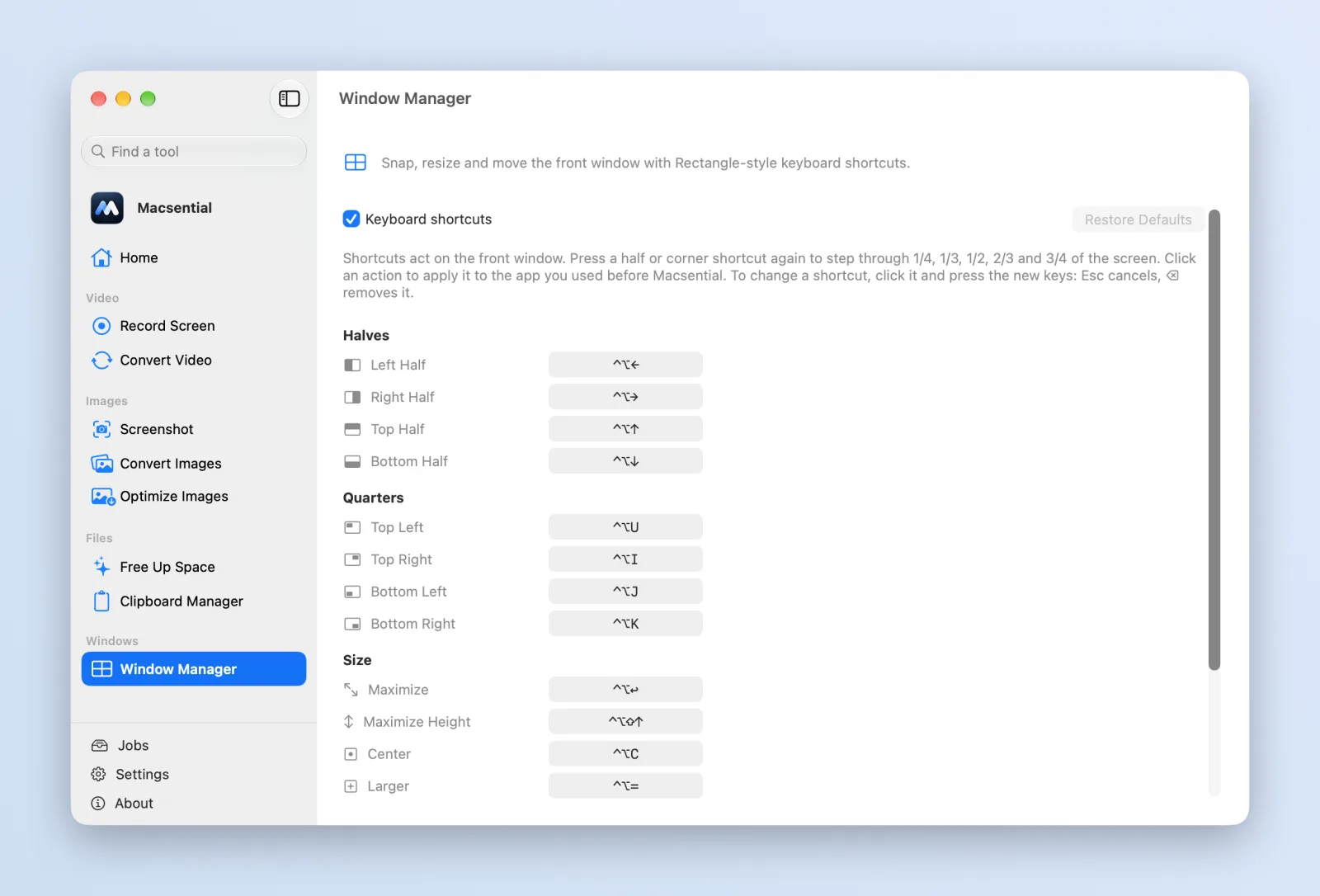
What it does
- Halves and quartersLeft, right, top or bottom half, or any corner quarter, with ⌃⌥ and an arrow or U, I, J, K. Press the same shortcut again for a third, two-thirds and other sizes.
- Maximize, center, resizeFill the screen, fill only its height, center the window, or make it larger or smaller in steps.
- Move between displaysSend the window to the next or previous display. It keeps its relative position and size.
- RestorePut a window back to the size and place it had before Macsential first moved it.
- Your own shortcutsRecord a different shortcut for any action, remove the ones you don't use, or switch them all off.
Press again for another size
A half isn't always the right size. Press a half shortcut again and the window steps through two-thirds, three-quarters, one-quarter and one-third of the screen, then back to half. Corner shortcuts keep half the screen's height and change the width the same way.
If an app adjusts the size itself, as Terminal does to fit whole characters, the next press still moves on from the size you asked for, so the cycle doesn't get stuck.
Halves also fit around the window already on the other side. With one window on the left two-thirds, the right-half shortcut fills exactly the third that's left. From there, pressing it again cycles through the sizes as usual.
How it fits with macOS
Layouts use the part of the screen that's free, so windows never slide under the menu bar or the Dock. Every default shortcut starts with ⌃⌥ (Control-Option).
Window Manager works from the keyboard and from buttons on its page in Macsential. It doesn't snap windows you drag to the edge of the screen. It needs the Accessibility permission to move other apps' windows, and Macsential opens that System Settings pane for you.
Keyboard shortcuts
These are the defaults. All of them work from any app and can be changed in Macsential.
| Action | Shortcut |
|---|---|
| Left / right half | ⌃⌥← / ⌃⌥→ |
| Top / bottom half | ⌃⌥↑ / ⌃⌥↓ |
| Top left / top right quarter | ⌃⌥U / ⌃⌥I |
| Bottom left / bottom right quarter | ⌃⌥J / ⌃⌥K |
| Maximize | ⌃⌥↩ |
| Maximize height | ⌃⌥⇧↑ |
| Center | ⌃⌥C |
| Larger / smaller | ⌃⌥= / ⌃⌥− |
| Restore | ⌃⌥⌫ |
| Next / previous display | ⌃⌥⌘→ / ⌃⌥⌘← |
Related
- How to Snap Windows on Mac Without an App macOS Sequoia and later snap windows to halves and quarters on their own. Drag, menu and keyboard steps, the margin setting, and when you need thirds.
- Screenshot Capture an area, a window or the screen, add a background, padding and text, or copy the text in it.
- Screen Recorder Record your screen, camera and sound, then add zooms, backgrounds and captions before you export.
- Rectangle Rectangle is free and snaps dragged windows. Macsential uses the same shortcuts and adds recording, screenshots, conversion and cleanup.
- Magnet Magnet is an inexpensive window snapper from the Mac App Store. Macsential adds keyboard layouts and four more tools.
Questions
Can I make a window two-thirds or three-quarters wide?
Yes. Press a half shortcut such as ⌃⌥← again: each press moves to two-thirds, three-quarters, one-quarter, one-third and back to half.
Doesn't macOS already snap windows?
It does: you can tile a window by dragging it to an edge or corner of the screen, or from the green button's menu. Macsential adds keyboard shortcuts for quarters, thirds and other widths, centering, resizing and moving between displays, and lets you choose the keys.
Can I change the shortcuts?
Yes. Click a shortcut on the Window Manager page and press the keys you want, or remove it. You can also switch all shortcuts off at once.
Does it work with several displays?
Yes. Layouts apply to the display the window is on, and ⌃⌥⌘→ / ⌃⌥⌘← move it to the next or previous display, keeping its relative position and size.
Can I snap a window by dragging it to the edge?
Not with Macsential: it moves windows with shortcuts and with the buttons on its page. Dragging to the edge is handled by macOS's own tiling.
Why does it need Accessibility access?
macOS only lets an app move and resize other apps' windows if it has the Accessibility permission. Macsential asks for it the first time you use Window Manager and opens the right System Settings pane.
Last updated