Disk Cleaner for Mac
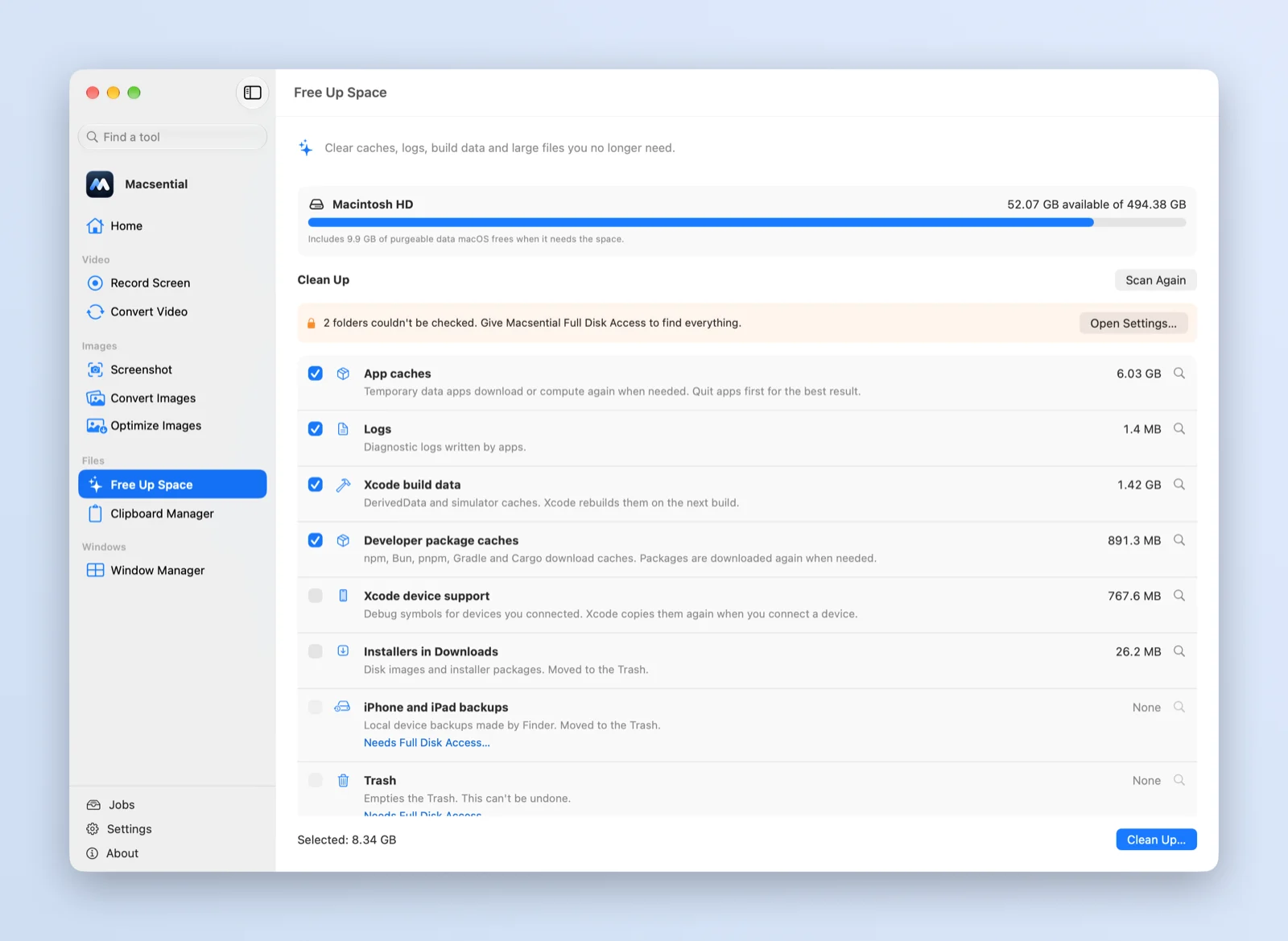
Free Up Space scans the folders that quietly fill a Mac (app caches, logs, Xcode build data, package-manager caches, old installers and device backups) and finds files of 500 MB or more in your home folder. You see the size of each before anything is removed.
What it does
- App caches and logsClear the contents of your Library's Caches and Logs folders, which apps rebuild as they need them.
- Xcode and developer cachesClear Xcode's DerivedData and simulator caches, old device support files, and npm, Bun, pnpm, Gradle and Cargo caches.
- Installers and backupsFind .dmg, .pkg, .xip and .iso installers left in Downloads, and iPhone and iPad backups made by Finder.
- Large filesList files of 500 MB or more in your home folder, biggest first, and move the ones you pick to the Trash.
- Nothing outside the listOnly the contents of the listed folders can be removed, never the folders themselves, and symlinks and other disks are never followed.
- Trash when it mattersInstallers, backups and large files go to the Trash so you can change your mind. Caches, logs and build data are deleted.
What gets selected
After a scan, the things that are safe to clear are selected for you: app caches, logs, Xcode build data and developer package caches. Xcode device support, installers in Downloads, device backups and the Trash are listed with their sizes but left unselected, because you may still want them. A confirmation shows how much will be deleted and how much moved to the Trash before anything happens.
Permissions
Free Up Space doesn't need Full Disk Access. If macOS stops it from reading some folders, it tells you which and offers a shortcut to the setting.
Keyboard shortcuts
Free Up Space has no shortcuts of its own: you run a scan and pick what to remove. One shortcut helps you get there.
| Action | Shortcut |
|---|---|
| Search for a tool in the menu-bar panel | ⌘K |
Related
- Free up disk space Get space back on a full Mac: Storage settings first, then what to delete by hand, then caches and build data.
- Find large files Find the biggest files on your Mac with Storage settings, Finder search, Terminal or Macsential, and remove them safely.
- How to Clear Xcode DerivedData and Free Up Space on Mac Where Xcode keeps DerivedData, Archives, device support and simulators, what is safe to delete, and how to clear each from Xcode or Terminal.
- File Converter Convert images to PNG, JPEG, HEIC, TIFF or WebP, and videos to MP4 or MOV, in batches, on your Mac.
- Screen Recorder Record your screen, camera and sound, then add zooms, backgrounds and captions before you export.
- CleanMyMac CleanMyMac is a subscription suite with malware removal and an uninstaller. Macsential clears caches and large files for a one-time price.
Questions
Is it safe to delete caches on a Mac?
Cache folders hold files apps can download or rebuild, so clearing them is generally safe; an app may be slower the first time it rebuilds what it needs. Macsential clears the contents of your user Caches folder, never the folder itself, and leaves its own cache alone.
Does it delete files permanently?
Caches, logs, Xcode build data and package caches are deleted. Installers, iPhone and iPad backups and large files are moved to the Trash, and emptying the Trash is a separate choice. The confirmation shows which is which.
Does it need Full Disk Access?
No. It only suggests it when macOS blocks some folders from being read, and opens the setting for you.
How does it find large files?
It scans your home folder for files of 500 MB or more and lists the 50 biggest. It skips your Library, hidden items, and files inside apps and Photos libraries.
Will it clean system files?
No. Everything it removes is inside your home folder, in the categories it lists.
Last updated