Screen Recorder for Mac
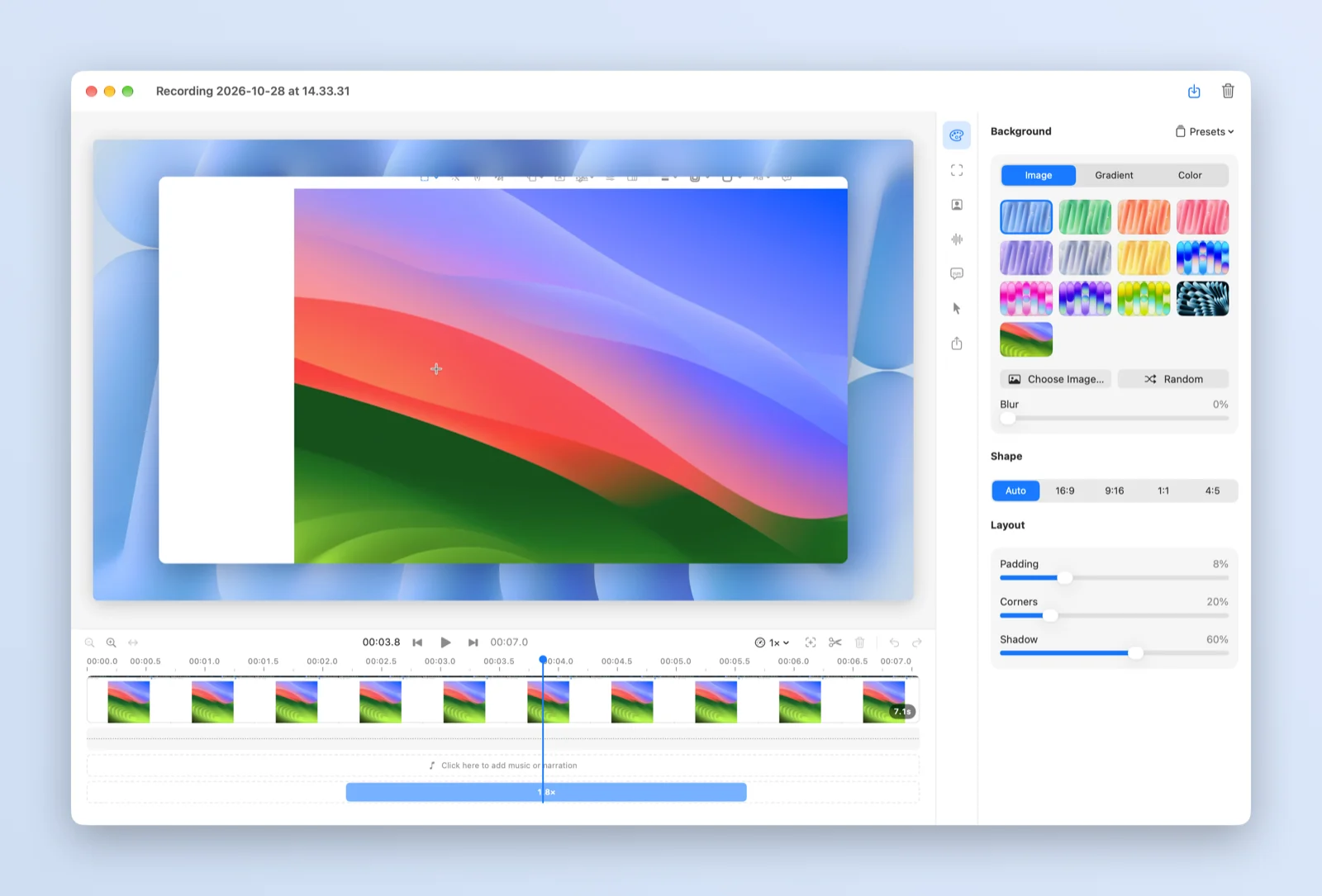
Record a whole display, one window or an area you drag, with your Mac's sound, a microphone and your camera. Nothing is baked in while you record: zoom, background, camera layout, captions and speed are added in the editor afterwards, and you can change them and export again at any time.
What it does
- Display, window or areaPick what to record, and which display when you have more than one. Choose 30 or 60 fps and a countdown of 3, 5 or 10 seconds, or none.
- System sound and microphoneRecord your Mac's sound and a microphone as separate tracks, then set the volume, mute parts and add music or narration in the editor.
- Camera on its own trackThe camera is saved separately, so you can move it, resize it, round it from square to circle or hide it after recording.
- Zoom that follows the pointerAdd a zoom with Z and choose whether it follows the pointer or holds one spot. The pointer itself is redrawn, so you can resize it, smooth it and show clicks.
- Captions made on your MacTranscribe speech with Apple's on-device recognition, show captions in the video, or export them as SRT or WebVTT.
- Cut, split and speed upSplit at the playhead, delete what you don't need and change the speed of a clip from 0.25× to 4×. Voices keep their pitch.
Record now, edit later
A recording is saved as a Macsential project that keeps the screen, the camera, each sound source and the pointer separate. That's why nothing you choose in the editor is permanent. Change the background from a macOS wallpaper to a gradient, crop to 9:16 for a short, or remove a zoom, and the original recording is untouched.
The recording controls (the floating bubble, the menu-bar timer and the border around an area) are never in the video. Pause leaves no gap, and if your Mac crashes mid-recording, Macsential recovers what it had saved the next time it opens.
Export
- MP4 (H.264) for sharing almost anywhere, MOV (HEVC) for the smallest high-quality file, or a looping GIF without sound.
- Original size, 4K, 1080p or 720p. Video is never upscaled, and the frame rate is never higher than the recording's.
- Presets for YouTube (1080p, 60 fps), the web (1080p, 30 fps), small files (720p) and GIFs.
- Captions as a separate SRT or WebVTT file, timed to the edited video.
Coming to the editor
These are planned and not available yet:
- Automatic zoom from your clicks, which you then adjust like zooms you place yourself.
- Background noise removal for your microphone.
- Camera background removal, so only you appear over the video.
- Editing by transcript: delete words to cut the video, and remove filler words and long pauses.
- Cropping the recording.
Like everything else in the editor, each one runs on your Mac and can be changed or turned off later.
Keyboard shortcuts
⇧⌘2 works from any app. The others work in the editor.
| Action | Shortcut |
|---|---|
| Start recording, cancel the countdown, or stop | ⇧⌘2 |
| Play or pause the preview | Space |
| Add a zoom at the playhead | Z |
| Split the clip at the playhead | S |
| Delete the selected clip or zoom | ⌫ |
| Undo | ⌘Z |
| Zoom the timeline out / in / to fit | ⌘− / ⌘= / ⌘0 |
| Export | ⌘E |
Related
- Record your screen with audio Record your voice and your Mac's own sound with the screen: what the built-in Screenshot app can do, and when you need an app.
- MOV to MP4 Turn QuickTime and iPhone movies into MP4 files that play on Windows, Android and the web.
- Screenshot Capture an area, a window or the screen, add a background, padding and text, or copy the text in it.
- File Converter Convert images to PNG, JPEG, HEIC, TIFF or WebP, and videos to MP4 or MOV, in batches, on your Mac.
Questions
Can it record my Mac's sound and my voice at the same time?
Yes. Turn on Mac Sound and pick a microphone before you record. They are saved as separate tracks, so in the editor you can set the volume of the recording, mute parts of it, and add music or narration clips with their own volume.
Does the camera or zoom have to be decided before I record?
No. The screen, camera, sound and pointer are recorded separately, and the zoom, background, camera size and position, captions and speed are applied in the editor. You can open a recording again later, change any of them and export again.
Which formats can I export?
MP4 with H.264, MOV with HEVC, or a looping GIF without sound, at the original size, 4K, 1080p or 720p. Captions can also be saved as SRT or WebVTT files.
Are captions made online?
No. Transcription uses Apple's speech recognition in on-device mode, so the audio never leaves your Mac. It needs the Speech Recognition permission the first time you use it.
What happens if my Mac crashes while recording?
The recording is written in short pieces as it goes. The next time Macsential opens, it turns an unfinished recording into a project you can edit and export.
Which Macs does it run on?
Macs with Apple Silicon running macOS 15 Sequoia or later. Recording needs the Screen Recording permission, plus Microphone and Camera if you turn them on.
Last updated