Clipboard Manager for Mac
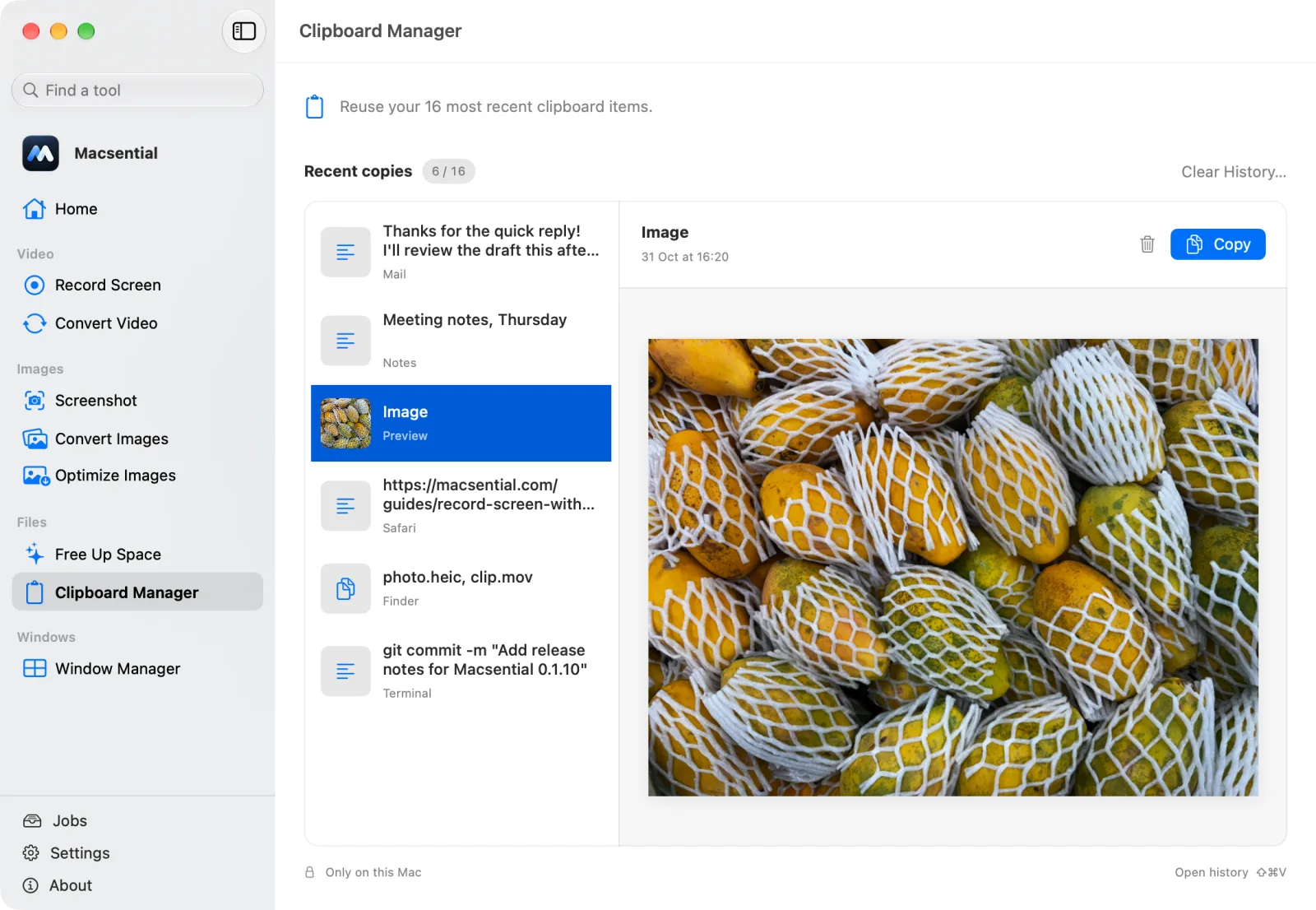
The Mac's clipboard holds one thing at a time. Copy something new and the last copy is gone. Clipboard Manager keeps your 16 most recent copies, text, images and files from Finder, so you can press ⇧⌘V in any app and bring one back.
What it does
- Your last 16 copiesText, images and files you copy are kept newest first, with the app they came from. Copy something again and it moves back to the top.
- ⇧⌘V from any appOpen your history over whatever you're working in, pick a copy and press Return. Esc closes it. The shortcut can be changed or removed.
- Passwords stay outItems that apps mark as concealed or temporary are skipped, and so is anything copied from 1Password, Bitwarden, Apple Passwords, KeePassXC or Dashlane.
- Only on your MacHistory is saved in a file only your user account can read. Nothing is uploaded or synced.
- Delete one or allRemove a single copy, or clear the whole history in one step. The item that's on the clipboard right now stays there.
- Files as referencesCopying files in Finder keeps where they are, not a second copy of them, so they need to still be there when you use the copy again.
How pasting works
Choosing a copy puts it back on the clipboard; then press ⌘V in the app you're working in, as usual. Macsential never types into other apps, which is why Clipboard Manager doesn't need the Accessibility permission.
What it keeps
Clipboard Manager watches the clipboard while Macsential is running, which it does in the menu bar even with no window open. It keeps up to 16 copies of up to 2 MB each, so large images may be left out. Copied text can still contain private details, such as an address or a code from an email; delete a copy or clear the history whenever you like.
Keyboard shortcuts
The history shortcut can be changed or removed in Settings ▸ Clipboard Manager.
| Action | Shortcut |
|---|---|
| Open clipboard history from any app | ⇧⌘V |
| Copy the selected item | ↩ |
| Close the history window | Esc |
| Search for a tool in the menu-bar panel | ⌘K |
Related
- Screenshot Capture an area, a window or the screen, add a background, padding and text, or copy the text in it.
- Window Manager Snap windows to halves and quarters, or move them between displays, with keyboard shortcuts.
- File Converter Convert images to PNG, JPEG, HEIC, TIFF or WebP, and videos to MP4 or MOV, in batches, on your Mac.
Questions
Does it paste for me?
No. Picking a copy puts it back on the clipboard, and you paste it with ⌘V. Because it never types into other apps, it needs no Accessibility permission.
How many items does it keep?
The 16 most recent copies, newest first, each up to 2 MB. Copying something already in the list moves it back to the top instead of adding it twice.
Does it save my passwords?
It skips anything an app marks as concealed or temporary, and anything copied from 1Password, Bitwarden, Apple Passwords, KeePassXC or Dashlane. Other copied text is kept, so delete anything sensitive or clear the history.
Where is my clipboard history stored?
In a file on your Mac that only your user account can read. It's never uploaded or synced to other devices.
Can I change the ⇧⌘V shortcut?
Yes. Choose another shortcut or remove it in Settings ▸ Clipboard Manager. If another app already uses the one you pick, Macsential tells you.
Last updated