Convert WEBP to JPG on Mac (Offline)
Images you save from websites are often WebP, and many apps and forms still won't take them. Macsential converts WebP to JPG on your Mac, one image or a whole folder at once.
Convert WEBP to JPG in Macsential
- 1
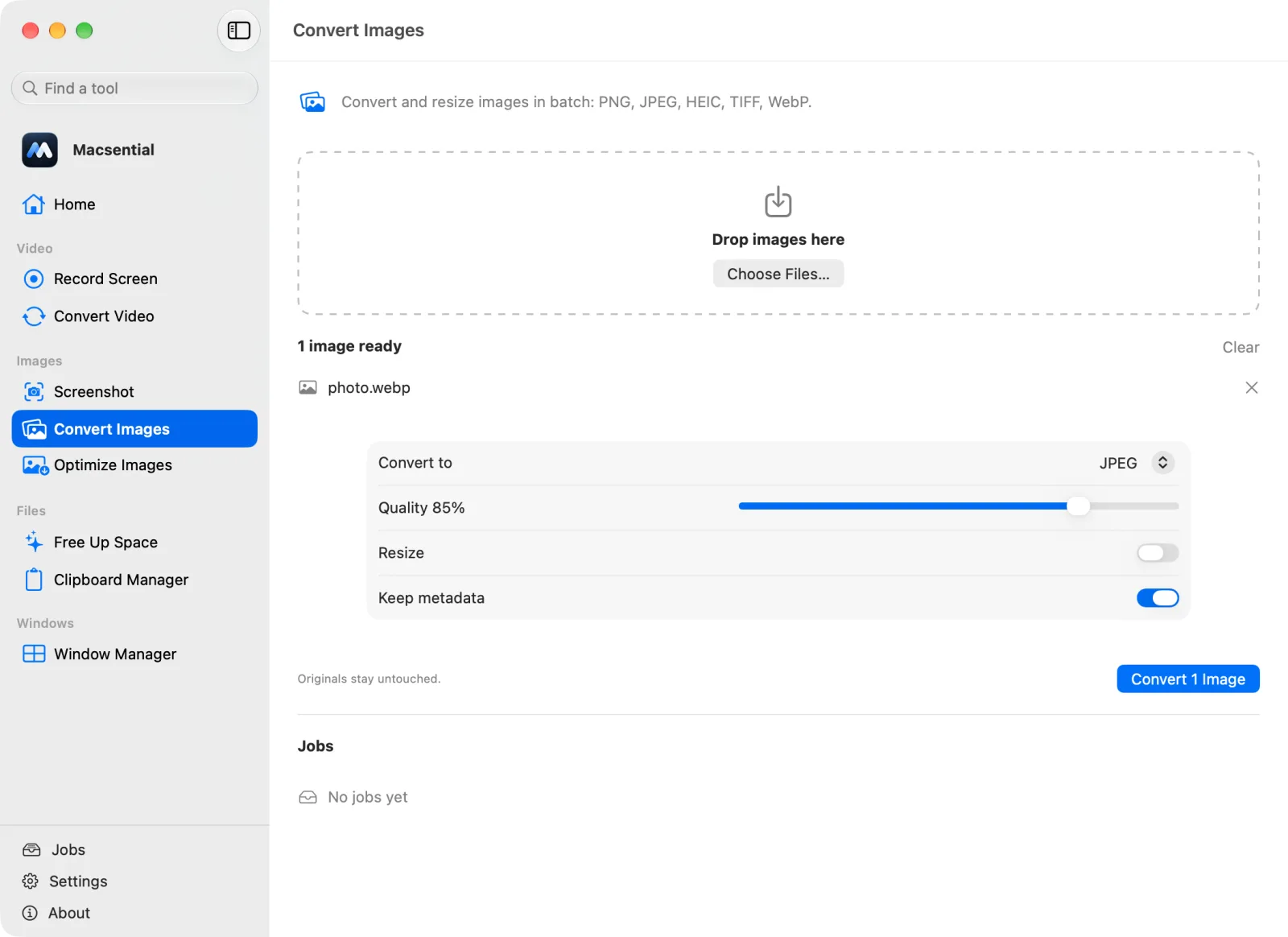
Open Convert Images in Macsential's sidebar, or select the files in Finder and choose Quick Actions ▸ Convert Images….
- 2
Drop the files on the page, or click Choose Files…. You can add as many as you like.
- 3
Set Convert to to JPEG. Leave Quality at 85% or move the slider; higher is sharper and bigger. Turn Resize on only if you want smaller dimensions, and leave Keep metadata on to keep the camera, date and location data.
- 4
Click Convert. The .jpeg files are saved next to the originals, which aren't changed.
In our test
We converted a 1.0 MB WebP (the iPhone test photo saved as WebP at quality 80) to JPG at quality 85 %.
| Sample | the iPhone photo as a quality-80 WebP with its metadata |
|---|---|
| Input | 1.0 MB, 4032 × 3024 px |
| Output | 3.2 MB (+209 %), 4032 × 3024 px |
| Settings | JPEG, quality 85 %, keep metadata on |
| Time | 0.17 s |
| Metadata | Camera make and model kept, Date taken kept, GPS location kept, Color profile kept, Orientation kept |
| Mac | Apple M1 Pro MacBook Pro, macOS 27.0.1 |
One sample file, measured with Macsential's converter on our Mac. Your files and Mac will give different numbers. How we measure
When WebP to JPG makes sense
Convert when an app, printer, older editor or upload form rejects WebP. JPG works almost everywhere. If you'll keep editing the image, or it has a transparent background, convert to PNG instead.
Quality and file size
Both formats are lossy, so converting re-compresses the image once more. At quality 85 % the loss is hard to see, and our 1.0 MB WebP became 3.2 MB (+209 %). WebP is the more efficient format, so the JPG is usually the bigger file at similar quality. Macsential saves the files as .jpeg, the same format as .jpg.
Metadata
Images from websites usually have their metadata stripped already. Our test WebP still had its camera data: with Keep metadata on, the camera model was kept and the GPS location was kept. Turn the switch off to leave such data out.
Batches
Drop a whole Downloads folder of WebP files; they're converted in parallel with one quality setting, and a file that can't be read doesn't stop the rest.
With what's built into macOS
Preview can open WebP files. Open one, choose File ▸ Export, pick JPEG and set the Quality slider.
Where it falls short
- Apple doesn't document WebP support in Preview; it works in current macOS, but you'll find little help if it doesn't.
- Exporting several WebP files means opening them all in Preview and selecting them in the sidebar, and Apple Community users report that batch exports sometimes skip files.
Related conversions
- WEBP to PNG Save web images as lossless PNGs for editing, keeping transparent backgrounds.
- PNG to JPG Make screenshots and graphics small enough to email or upload, with control over quality.
- PNG to WEBP Make images smaller for websites, keeping transparency, even though macOS can't save WebP.
- HEIC to PNG Turn iPhone photos into PNG files that open everywhere, without losing any quality.
Questions
How do I convert WebP to JPG on a Mac?
Open the WebP in Preview, choose File ▸ Export, pick JPEG and save. For many files at once, drop them on Macsential's Convert Images and choose JPEG.
Why do I get WebP files when I save images from websites?
Many websites serve WebP because it's smaller than JPG or PNG at similar quality, and Safari and other browsers save the file in the format they received.
Does converting WebP to JPG lose quality?
A little, because the image is compressed again as JPG. At quality 85% the difference is hard to see.
Will the JPG be bigger than the WebP?
Usually, because WebP compresses photos more efficiently. In our test a 1.0 MB WebP became 3.2 MB.
Can I convert WebP to JPG from the command line?
Yes: sips -s format jpeg in.webp --out out.jpg reads WebP and writes JPEG on current macOS.
Last updated