Comparison
Screen Studio vs Macsential: Mac Screen Recorders Compared
By Nguyen Truong Duy · · 9 min read
Screen Studio and Macsential's Record Screen work the same way at heart: they record your screen, camera and sound, and apply the zoom, background, cursor and camera layout afterwards in an editor instead of baking them into the recording. If you searched "Screen Studio vs Macsential", the short answer is this: Screen Studio is the more complete, more automatic product for polished demo videos and costs a subscription; Macsential's recorder does the core of the same job by hand, is a one-time purchase, and comes with a set of other Mac tools in the same app.
The rest of this post goes through the details so you can decide which matters to you. Everything about Screen Studio comes from its official site, guide and changelog as of version 4.1 (October 2026); check them for changes.
The short version
Pick Screen Studio if you make product demos, launch videos or social clips often, want automatic zoom and a smooth cursor without placing anything by hand, need camera layouts like split screen or a background-removed cutout, want to edit by deleting words from a transcript, or want to send a link instead of a file. It is the focused, polished tool in this niche, and it shows.
Pick Macsential if you record tutorials, bug reports and walkthroughs now and then, are fine placing zooms yourself, would rather pay once than subscribe, want everything processed on your Mac with no cloud features at all, or would also use a screenshot tool, image and video converters, window snapping and disk cleanup.
Feature and price table
| Screen Studio | Macsential (Record Screen) | |
|---|---|---|
| Pricing model | Subscription: $29/month, or $9/month billed yearly (pricing) | One-time purchase, one year of updates included (pricing) |
| Platform | macOS Ventura 13.1 or later; Apple silicon recommended, recent Intel Macs supported | macOS 15 Sequoia or later, Apple Silicon |
| Record | Display, window, area; camera, mic, system sound; iPhone/iPad over USB | Display, window, area; camera, mic, Mac sound as separate tracks; 30 or 60 fps |
| Zoom | Automatic (from clicks) and manual; Classic and Loupe styles | Manual: add a zoom on the timeline, follow the pointer or fix a point, 1.1× to 4× |
| Cursor | Smoothing, motion blur, click effects, size and style, hide when idle, click sounds | Smoothing, size, click effect (ripple or highlight), hide when idle |
| Camera | Overlay, split screen, fullscreen, screen only, background cutout, face tracking | Overlay in a corner or anywhere, size, roundness, mirror, hide while zoomed |
| Backgrounds | Wallpapers, gradients, your image, Unsplash; padding, shadow, inset | Solid color, gradient, your image; padding, rounded corners, shadow, blur |
| Aspect ratios | 16:9, 1:1, 9:16 | Auto, 16:9, 9:16, 1:1, 4:5 |
| Editing | Trim, cut, crop, speed, transcript editing, filler-word removal, masks | Split, cut, trim, speed per clip (0.25× to 4×), undo |
| Audio | Noise reduction, background music, AI voiceover | Volume, muted ranges with fades, added audio clips |
| Captions | Styled, animated; on-device or cloud transcription; SRT export | Apple on-device speech recognition; burned in, or SRT and WebVTT files |
| Export | MP4 (720p, 1080p, 4K, up to 60 fps), GIF up to 1080p, ProRes MOV, copy to clipboard | MP4 (H.264), MOV (HEVC), GIF; original, 4K, 1080p or 720p |
| Sharing | Shareable links with comments, project sharing | macOS share sheet for the exported file |
| Other tools | No, it does one thing | Screenshots, image and video conversion, window management, disk cleanup |
Prices as listed on screen.studio on October 28, 2026.
Recording
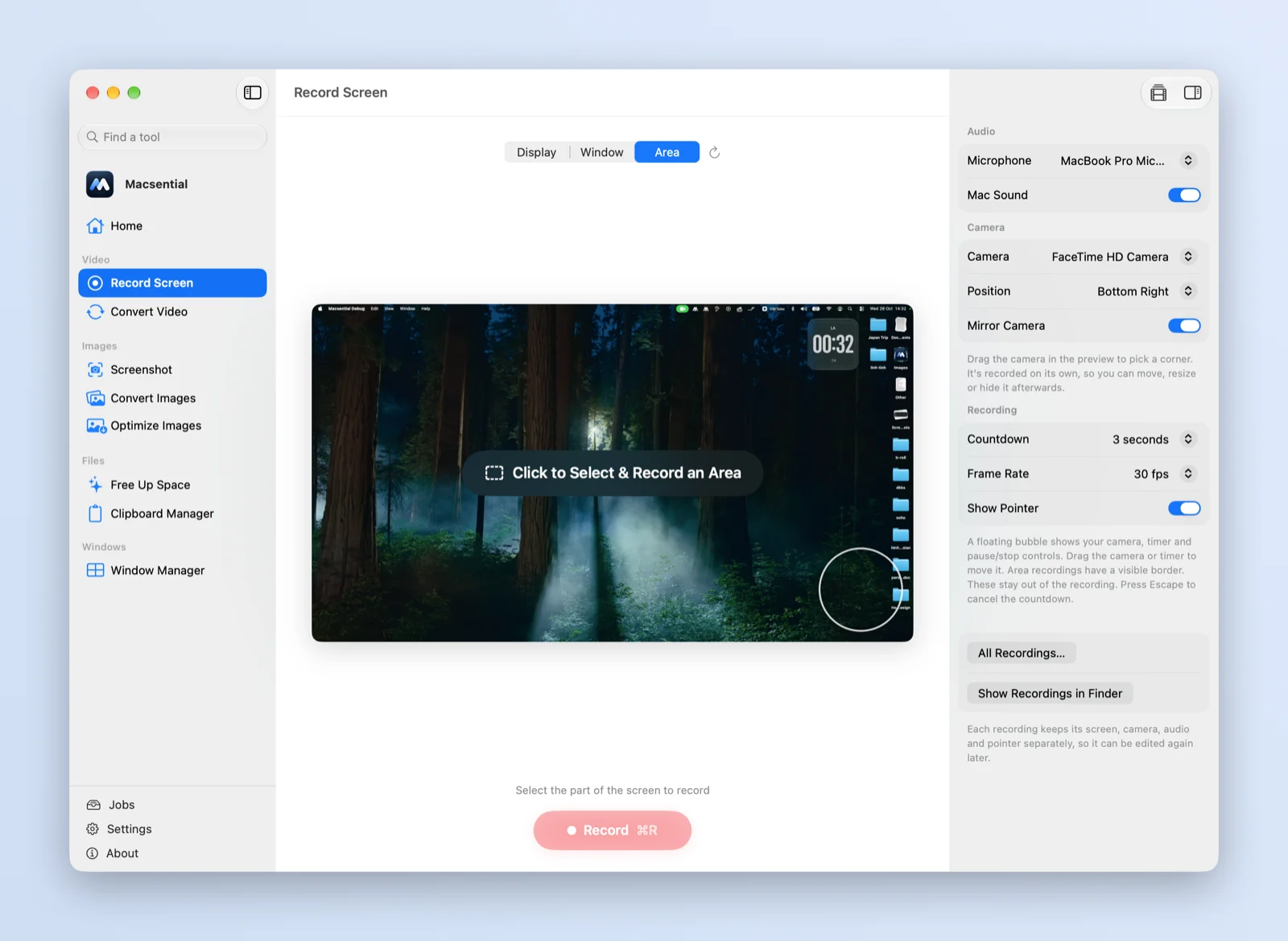
Both apps record a whole display, one window or an area you draw, together with a camera, a microphone and the sound your Mac plays. Both let you pause and resume and both survive a crash: Screen Studio saves the take to disk every two seconds, and Macsential writes its tracks in two-second fragments and turns them back into a project on the next launch.
The difference is in what each records into. Macsential keeps the screen, Mac sound, microphone and camera as separate tracks, with the pointer not drawn into the screen video. The pointer is redrawn from a log of its positions and clicks, which is what makes cursor size and smoothing editable later. (If you're curious how that works, Building a Screen Recorder in Swift goes through it.) You pick 30 or 60 fps before recording.
Screen Studio adds things Macsential doesn't have: speaker notes while you record, a one-click resize of the recorded window to an exact size, importing an existing video to edit like a recording, and recording an iPhone or iPad over USB with a device frame around it. If you make app demos for iOS, that last one alone may decide it.
Zoom: automatic versus placed by hand
This is the biggest difference, and it's in Screen Studio's favor. Screen Studio adds zooms automatically, following your clicks and activity during the recording, and you adjust or add zooms afterward. It has two zoom styles (Classic and Loupe) and keeps the camera from covering the cursor while zoomed.
Macsential has no automatic zoom. You add a zoom at the playhead, drag its ends on the timeline, and choose whether it follows the pointer or holds on a fixed point, at 1.1× to 4×. Zooms ease in and out over 0.6 seconds and never pan past the edge of the screen. It is quick for a two-minute walkthrough with five zooms; for a long recording with dozens of clicks, Screen Studio's automatic pass saves real time.
Cursor
Both apps redraw the cursor, so both can smooth its path, change its size, add an effect on clicks and hide it when it stops moving. Screen Studio goes further with motion blur on fast moves, click sounds, changing the cursor's style, and a looping cursor position so a clip ends where it began. Macsential's options are visibility, size, smoothing, a ripple or highlight on clicks, and hiding the pointer when idle.
Camera layouts
Screen Studio has real layouts: camera overlay, split screen, fullscreen camera, screen only, and a camera cutout that removes your background on the Mac (it needs Apple silicon and macOS 15 or later). It adds face tracking, color grading and hiding the camera when you're silent.
Macsential places the camera as an overlay: in a corner or anywhere you drag it, with its size, roundness and mirroring adjustable, and an option to hide it while the screen is zoomed. There's no split screen, no fullscreen camera and no background removal. If you appear on camera a lot, Screen Studio is ahead here.
Backgrounds and aspect ratios
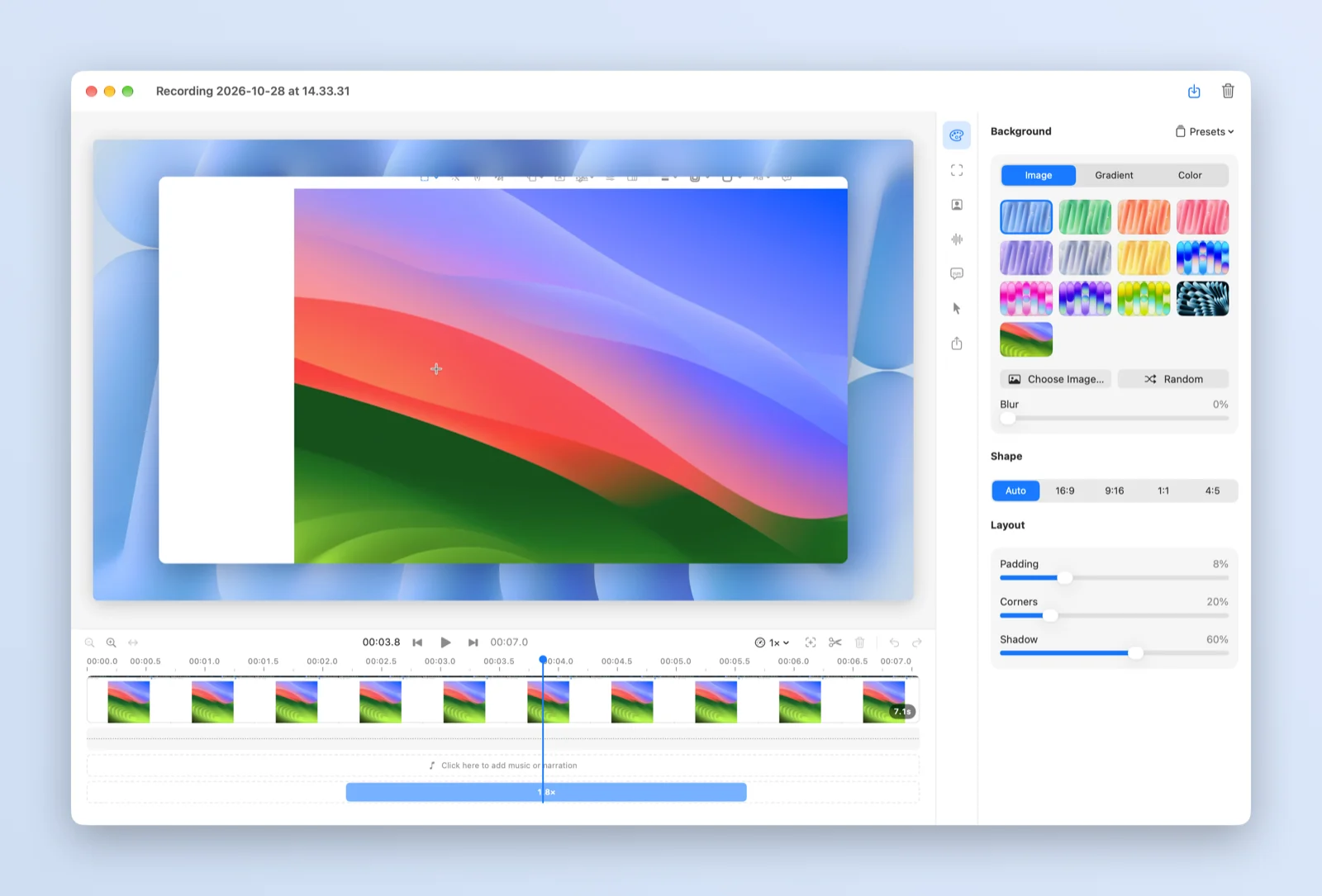
Both put the recording on a background with padding, rounded corners and a shadow. Screen Studio offers macOS wallpapers, gradients, your own image and Unsplash photos. Macsential offers solid colors, gradients and your own image, plus a blur, and saves panel settings as presets you can make the default for new recordings.
For aspect ratio, Screen Studio has 16:9, 1:1 and 9:16, adjusts zooms, layouts and captions to fit, and has a Reel mode that previews how Instagram or TikTok will overlay the video. Macsential has Auto (the recording's own shape), 16:9, 9:16, 1:1 and 4:5.
Editing
Macsential's editor covers the basics: split, cut and trim on a timeline with thumbnails and a waveform, a speed from 0.25× to 4× per clip, and undo for every change. Every edit is stored apart from the recording, so you can reopen a project months later, change the background or the zooms, and export again.
Screen Studio's editor does more. You can edit by deleting sentences from the transcript, remove filler words and pauses automatically, speed up typing-heavy stretches, crop, and cover sensitive data such as API keys with masks or draw attention by dimming the rest of the frame. For audio it has noise reduction, a podcast mode in beta, looping background music and AI voiceover from typed text. Macsential's audio tools are volume, muting parts (with short fades so cuts don't click) and adding your own audio clips.
Captions
Both make captions from your voice on the Mac. Macsential uses Apple's on-device speech recognition in the languages your Mac supports offline, draws the captions into the video, and can also export them as SRT or WebVTT files timed to the edited video, cuts and speed changes included.
Screen Studio offers several caption styles and animations, local transcription with Whisper or Apple's recognizer (Whisper isn't offered on macOS 26 and later), optional cloud transcription, and SRT export. More styles and animations give it the edge for social video; Macsential's WebVTT export helps if you publish on a website or course platform that wants .vtt.
Export and sharing
Screen Studio exports MP4 at 720p, 1080p or 4K up to 60 fps and GIF up to 1080p, and since version 4.1 also ProRes (422 LT, 422, 422 HQ or 4444) as a .mov file for editing in Final Cut Pro, DaVinci Resolve or Premiere Pro. It can copy the finished video to the clipboard. Its shareable links are the other big strength: viewers watch in the browser at 1080p60 (for videos up to 30 minutes), can comment on specific moments, and links can be private. You can also share an editable project with someone else.
Macsential exports MP4 (H.264, plays everywhere), MOV (HEVC, smaller files that play best on Apple devices; Screen Studio's site doesn't list HEVC export) or GIF, at the original size, 4K, 1080p or 720p. After export you can show the file in Finder or share it with the macOS share sheet. There is no hosting and no links: the file is yours to put wherever you like. If you send recordings to clients or teammates every day, Screen Studio's links are a real convenience.
Privacy
Screen Studio records and processes on the Mac and says it tells you before anything leaves it; its cloud features (links, shared projects, cloud transcription, AI voiceover) are optional. Macsential has no cloud features at all: recording, captions and export all happen on your Mac, and files are never uploaded.
Pricing model
Screen Studio is a subscription: $29 a month, or $9 a month billed yearly, with every feature in every plan and 40% off for students and educators. It used to sell one-time licenses; those still work but are no longer sold. See screen.studio/#pricing for the current terms.
Macsential is a one-time purchase. A license works on one Mac at a time and includes one year of updates; the versions released in that year keep working forever, and renewing updates afterwards is optional. Every purchase has a 14-day full refund. The current price is on the pricing page.
If you record every week and your videos earn you money, Screen Studio's subscription can easily pay for itself. If you record a few times a month, paying once may make more sense.
What else each app does
Screen Studio does one thing: screen recording and editing for good-looking videos. That focus is why it's polished.
Macsential is a set of everyday Mac tools in one app, and Record Screen is one of them. The others: styled screenshots (area, window or screen, with crop, text and a background), image conversion, resizing, optimizing and metadata removal in batches, HEIC to JPG and other image formats, video conversion to MP4 or MOV, window snapping with keyboard shortcuts (if you only need halves, macOS can do it alone), and Free Up Space, which finds caches, logs and build data such as Xcode's DerivedData. Finder Quick Actions run the image and video conversions from a right-click.
Which one should you choose?
Choose Screen Studio if:
- you want automatic zoom and the most polished cursor motion with the least work,
- you're on camera and want split screen, fullscreen camera or background removal,
- you'd like to edit by transcript, remove filler words or add music and voiceover,
- you share by link and want viewer comments, or record iPhone and iPad apps,
- you're on macOS 13 or 14, or an Intel Mac, which Macsential doesn't support,
- you want ProRes files to finish the edit in Final Cut Pro, Resolve or Premiere.
Choose Macsential if:
- you prefer a one-time purchase to a subscription,
- placing a few zooms by hand is fine for the videos you make,
- you want HEVC MOV export, a 4:5 canvas or WebVTT captions,
- you want nothing to leave your Mac, with no optional cloud features to think about,
- you'd use the screenshot, conversion, window and cleanup tools too.
Both keep your edits separate from the recording, so whichever you pick, you can change your mind about a background or a zoom later. You can download Macsential and try Record Screen on your own recordings.