How-to
How to Clear Xcode DerivedData and Free Up Space on Mac
By Nguyen Truong Duy · · 7 min read
To clear Xcode DerivedData, quit Xcode and delete the contents of ~/Library/Developer/Xcode/DerivedData, either from Finder (Xcode ▸ Settings ▸ Locations shows the folder) or with rm -rf ~/Library/Developer/Xcode/DerivedData/* in Terminal. It is safe: Xcode rebuilds everything there on the next build, which will just be slower once.
DerivedData is rarely the only thing filling your disk, though. Simulators, device support files and old archives often take more. This guide covers where each lives, what is safe to remove, and how to remove it.
See where the space went
Run this in Terminal to get the size of each Xcode folder in your home folder:
du -sh ~/Library/Developer/Xcode/* ~/Library/Developer/CoreSimulator/* 2>/dev/null | sort -h
On a Mac used for iOS work for a year or two, it's common to find tens of gigabytes here. The main folders:
| What | Where | Safe to delete? |
|---|---|---|
| DerivedData (build products, indexes, module caches) | ~/Library/Developer/Xcode/DerivedData |
Yes. Rebuilt on the next build. |
| Simulator caches | ~/Library/Developer/CoreSimulator/Caches |
Yes. Recreated when needed. |
| Device support | ~/Library/Developer/Xcode/iOS DeviceSupport (and watchOS, tvOS, visionOS DeviceSupport) |
Yes. Copied again when you connect a device on that OS version. |
| Simulator devices (apps and data in each simulator) | ~/Library/Developer/CoreSimulator/Devices |
Use simctl or Xcode, not Finder. Deleting a simulator loses its app data. |
| Simulator runtimes (one per OS version) | Disk images outside your home folder, managed by Xcode ▸ Settings ▸ Components | Yes, if you don't test on that OS version. Can be downloaded again. |
| Archives | ~/Library/Developer/Xcode/Archives |
Careful. Keep archives of every build you shipped. |
The du command above doesn't count simulator runtimes. Recent Xcode versions keep them as disk images in system folders (/Library/Developer/CoreSimulator or /System/Library/AssetsV2), so run xcrun simctl runtime list to see them with their total size.
Clear DerivedData
From Xcode
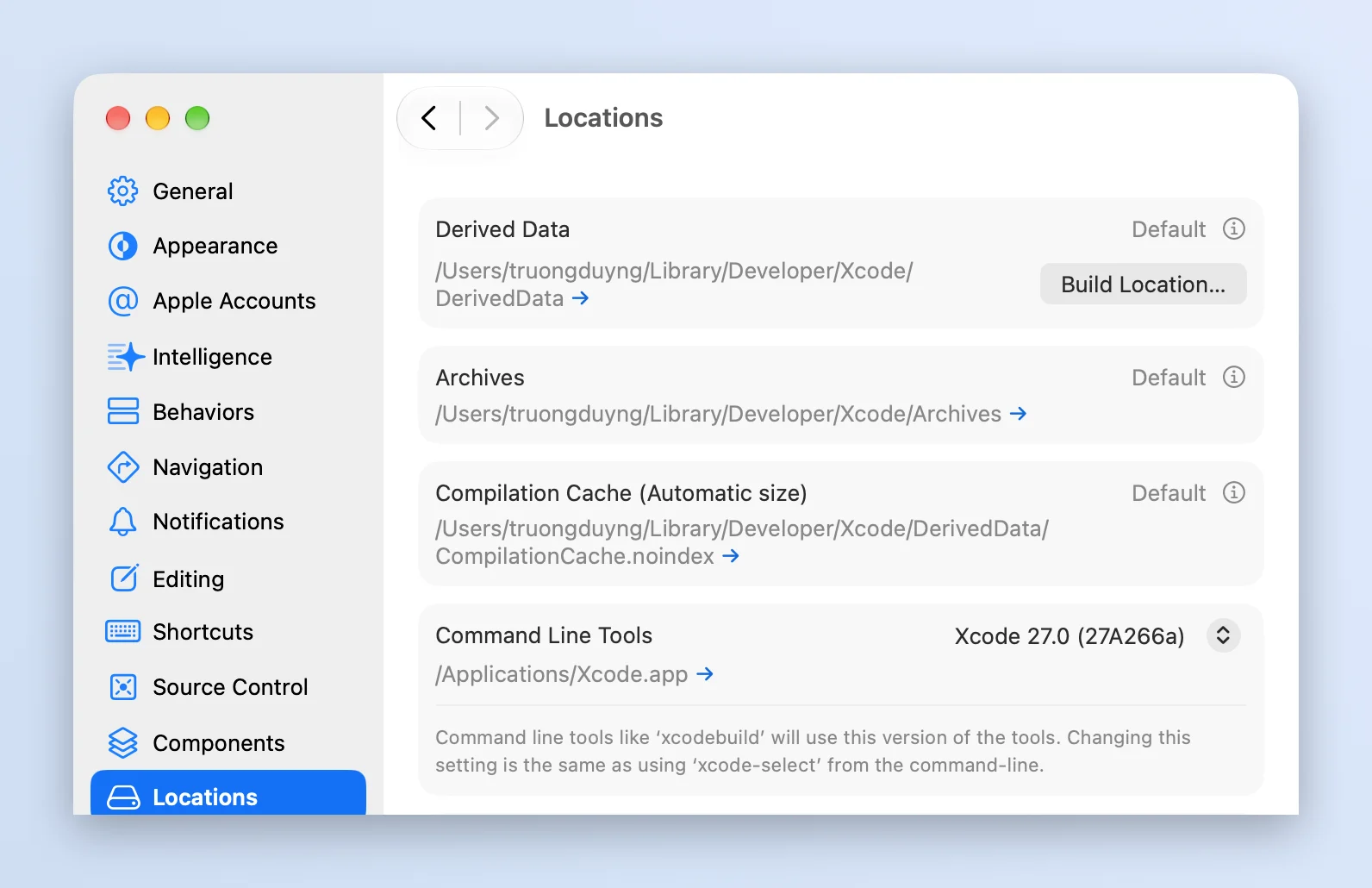
- Quit any running builds, then choose Xcode ▸ Settings (⌘,) and click Locations.
- Next to Derived Data, click the small arrow to open the folder in Finder.
- Quit Xcode, then delete the folders inside. Each project has its own folder named after the project plus a hash, so you can remove only the one that's misbehaving.
Product ▸ Clean Build Folder (Shift-Command-K) is not the same thing. It removes the build products of the open project only, and leaves its index and the DerivedData of every other project in place. It's the right first step for a strange build error, but it won't free much space.
From Terminal
rm -rf ~/Library/Developer/Xcode/DerivedData/*
Quit Xcode first: if it's open, it starts writing the index again right away. rm -rf skips the Trash, so the space comes back at once. Double-check the path before pressing Return.
Remove old simulators and runtimes
Each simulator is a full device with its own apps and data, and each simulator runtime (iOS 17, iOS 18, iOS 26…) takes several gigabytes. After a few Xcode updates, many simulators point at runtimes that no longer exist.
Remove the simulators whose runtime is gone:
xcrun simctl delete unavailable
This only removes device records Xcode can't use anyway. It doesn't touch runtimes. To see everything that's left, run xcrun simctl list devices. To remove a simulator you no longer want, delete it in Window ▸ Devices and Simulators ▸ Simulators (right-click ▸ Delete) or with xcrun simctl delete <UDID>.
Runtimes are managed in Xcode ▸ Settings ▸ Components. Xcode lists the installed platforms and simulator runtimes with the storage you'd recover. Click the info button next to a runtime and choose Delete. Xcode 14 and 15 called this pane Platforms; Xcode 16 renamed it Components. In Terminal:
xcrun simctl runtime list
xcrun simctl runtime delete <runtime identifier>
Deleting a runtime makes its simulators unavailable, so run xcrun simctl delete unavailable again afterwards.
Clear device support files
Each time you connect an iPhone, iPad, Apple Watch or Apple TV on a new OS version, Xcode copies that version's debug symbols into ~/Library/Developer/Xcode/iOS DeviceSupport (or the watchOS, tvOS and visionOS equivalents). This still applies to devices on iOS 17 and later. Folders are named by OS version and build (some also start with the device model), and each can be a few gigabytes.
Delete the folders for OS versions your devices no longer run. If you delete one you still need, Xcode copies it again the next time you connect that device, which takes a few minutes.
Be careful with Archives
~/Library/Developer/Xcode/Archives holds every build you made with Product ▸ Archive. Each archive contains the app and its dSYM files, the debug symbols that turn crash reports into readable function names and line numbers. If you delete the archive of a version people still use, crash reports from that version (in Xcode's Organizer or in a crash reporting service) can no longer be symbolicated.
Since Xcode 14 dropped bitcode, App Store Connect no longer offers dSYMs to download for new builds. Unless you uploaded the dSYMs to a crash reporting service, the archive on your Mac is likely the only copy.
So:
- Keep the archive of every build you released, at least while that version is in use.
- Delete archives of test builds and of versions nobody runs anymore.
- To delete, use Window ▸ Organizer ▸ Archives, select archives and press Delete, so you see the app name, version and date. Or back the dSYMs up first: right-click an archive ▸ Show in Finder, then right-click the
.xcarchive▸ Show Package Contents ▸dSYMs.
Is the built-in way enough?
For a one-off cleanup, yes. Xcode and Terminal cover all of it, and for simulators, runtimes and archives they're the right tools, because they know what each item is.
The catch is that this data grows back, and Xcode isn't the only thing filling ~/Library. App caches, logs, npm and Gradle caches, and old installers in Downloads pile up too, and each lives in a different folder.
The faster way: Macsential Free Up Space
Macsential is a native Mac app with a set of everyday tools. Its Free Up Space tool shows what each of these folders holds, in one list, and clears the ones you tick.
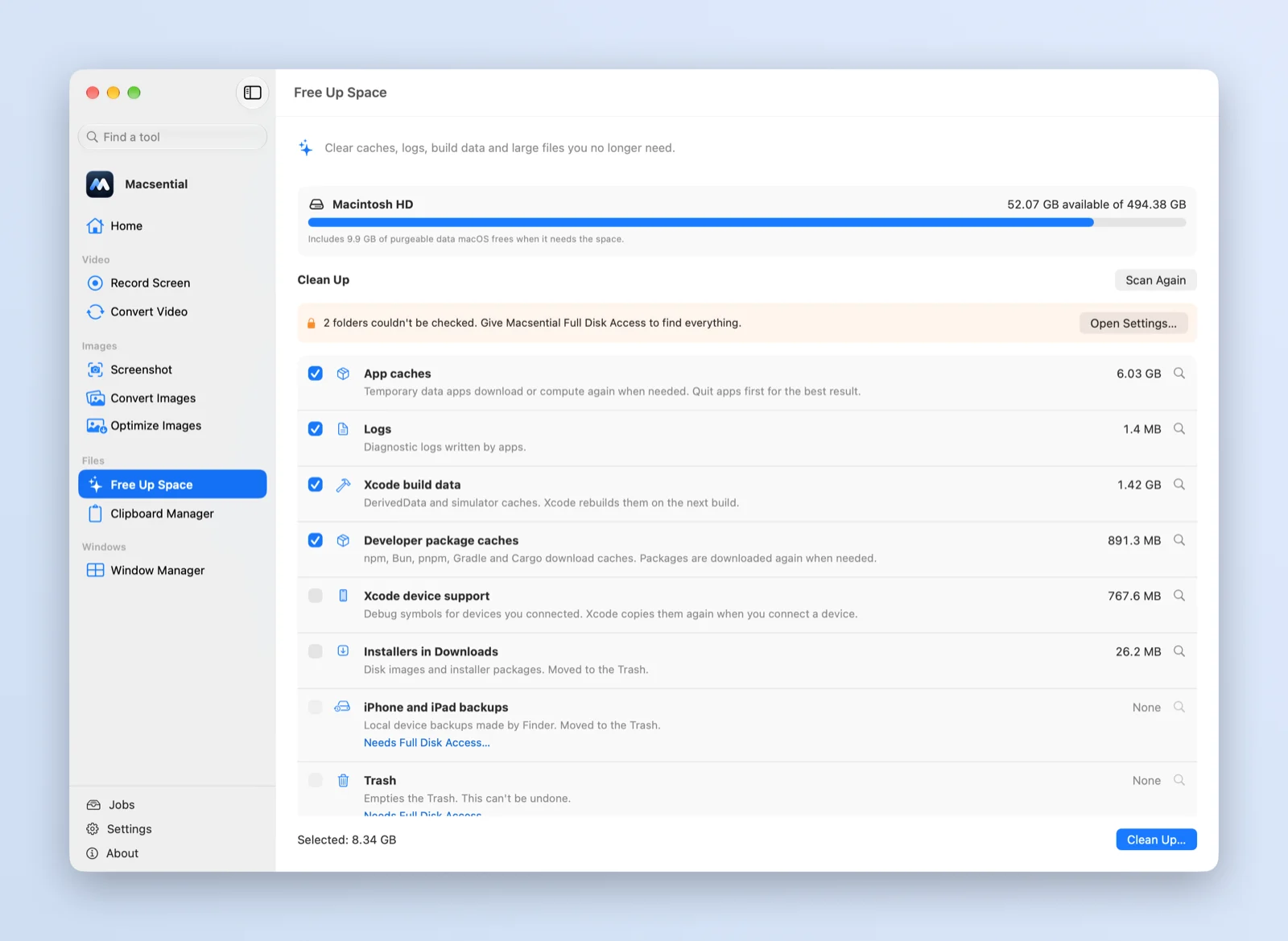
Click Scan, and it measures:
- Xcode build data: DerivedData and simulator caches (
CoreSimulator/Caches). Ticked by default. Deleted permanently, since Xcode rebuilds them. - Xcode device support: the iOS, watchOS, tvOS and visionOS DeviceSupport folders. Not ticked by default, because Xcode has to copy them again the next time you connect a device. Deleted permanently.
- Developer package caches: npm, Bun, pnpm, Gradle and Cargo download caches. Packages are downloaded again when needed.
- App caches and logs in your Library folder, installers in Downloads (disk images and packages), iPhone and iPad backups, and the Trash.
- Large files over 500 MB in your home folder, outside
~/Libraryand hidden folders, so you can spot that forgotten screen recording or VM image.
What it doesn't do matters as much: it never touches Archives, simulator devices or runtimes. Use Organizer and Xcode's Components settings for those, as above, because only you know which builds you shipped.
Before anything is removed, the confirmation says how much will be deleted permanently and how much moved to the Trash. Caches, logs and build data are deleted. Your own files (installers, device backups, large files) go to the Trash, so you can still get them back. Each row has a Show in Finder button to look first. Quit Xcode before you clean, as you would in Terminal.
If some folders can't be read, Free Up Space says so and links to Full Disk Access in System Settings. Everything happens on your Mac.
Free Up Space comes with screen recording, screenshots, image and video conversion and window management in one app. See pricing or download Macsential. If you're curious how a native Swift utility like this is built, the screen recorder devlog goes into the details.
FAQ
Is it safe to delete DerivedData?
Yes. It holds only things Xcode generates: build products, the code index, and module caches. Your source code and project settings are elsewhere. The next build and indexing take longer, once.
Why does Xcode take up so much space?
Xcode itself is large, but the growth comes from the data around it: a simulator runtime per OS version, a device support folder per device OS version, an archive per release, and DerivedData for every project you've opened. In System Settings ▸ General ▸ Storage, much of it is listed under Developer, with items such as Xcode caches, project build data and indexes, project archives, device support and simulator support, each with its size. The rest is counted in System Data. Treat the archives listed there as carefully as in Organizer.
How often should I clear DerivedData?
There's no need to do it on a schedule. Clear it when your disk is getting full, when a build or the index acts strangely and Clean Build Folder didn't help, or after you finish with a project.
Can I delete old Xcode Archives?
Yes, but keep the archive (or at least the dSYMs) of every version people still run. Without them, crash reports from that version can't be symbolicated.