How to find large files on your Mac
A few big files often take more space than thousands of small ones: old videos, disk images, exported projects, archives you forgot to unzip and delete. Here are four ways to find them, from the one built into System Settings to a one-line Terminal command.
The short answer
Open System Settings ▸ General ▸ Storage, click the Info button next to Documents, and sort the files by Size. For a search that covers the whole home folder, use a Finder search with a File Size rule, or run find ~ -size +500M in Terminal. Macsential's Free Up Space lists every file of 500 MB or more in your home folder, biggest first, and moves the ones you pick to the Trash.
Find large files with Storage settings
- 1
Choose Apple menu ▸ System Settings, click General, then Storage.
- 2
Click the Info button next to Documents.
- 3
Click the button for large files, then click Size at the top of the list to put the biggest first.
- 4
Select a file you don't need and click Delete, or click Show in Finder to look at it first.
Where it falls short
- Documents only covers files in your home folder that aren't in another category, so photos in your Photos library and apps are counted elsewhere.
- Apple doesn't say how big a file must be to show up, and people report large files on the Desktop missing from the list.
Find large files with Macsential
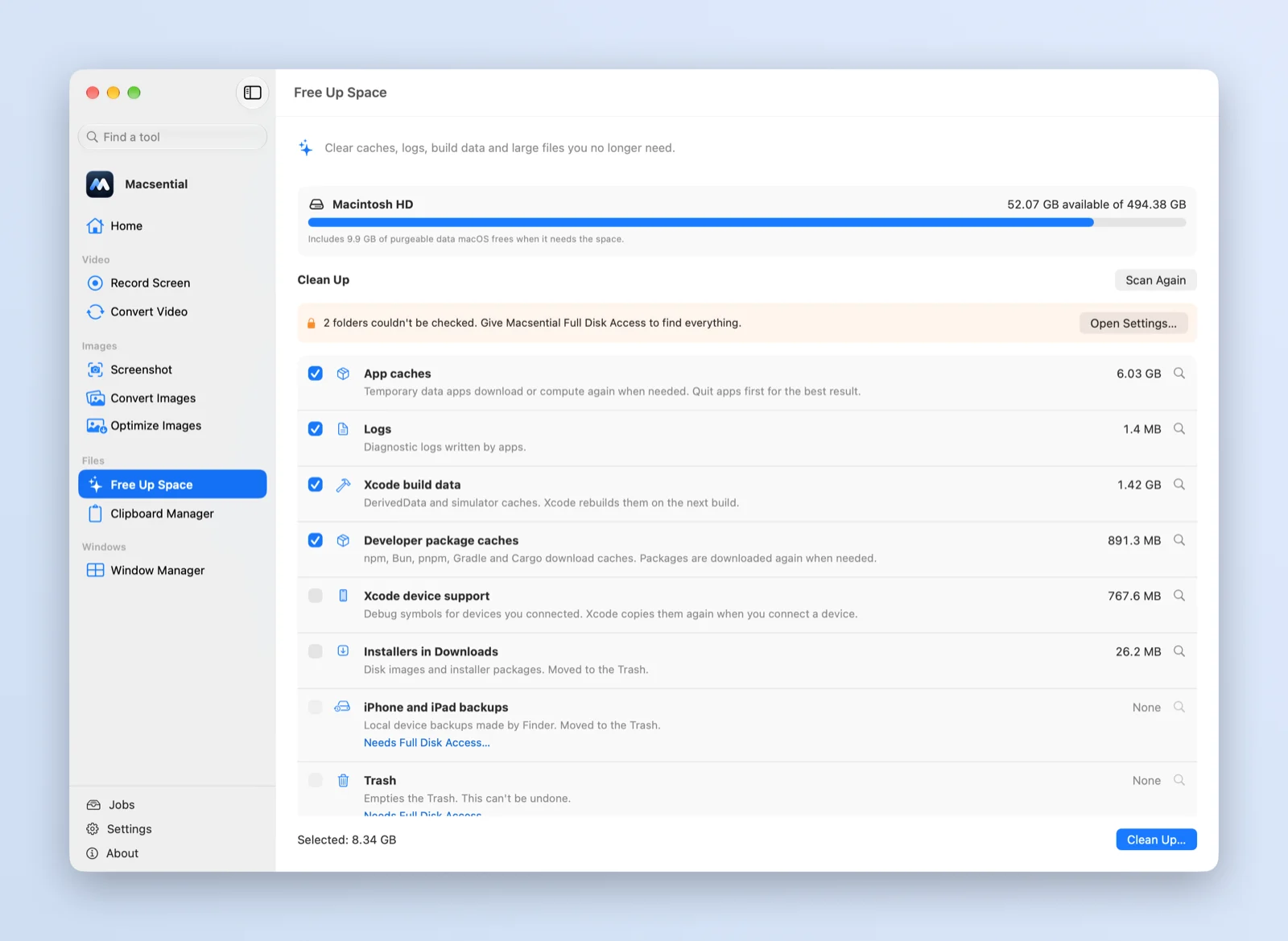
Free Up Space scans your home folder for files of 500 MB or more and lists the 50 biggest, with their sizes and where they are.
- 1
Open Free Up Space in Macsential's sidebar and click Scan.
- 2
Scroll to Large Files. Each file shows its size and folder, biggest first.
- 3
Select the files you no longer need and click Clean Up…. They're moved to the Trash, so you can still take one back before you empty it.
Search by size in the Finder
- In a Finder window, press Command-F.
- Click the add button below the search field, open the first pop-up menu and choose Other….
- Select File Size, then set the rule to is greater than a size such as 500 MB.
- Choose This Mac or your home folder at the top, and sort the results by size.
Click Save to keep the search as a Smart Folder you can open again later.
Find large files in Terminal
This lists every file over 500 MB in your home folder, with its size:
find ~ -size +500M -exec ls -lh {} + 2>/dev/null
Change +500M to +1G to see only the biggest. It only lists files; nothing is deleted.
Before you delete a big file
Check what it is first. Disk images (.dmg) and installers in Downloads are safe once the app is installed. Video exports can usually be made again from the project. But a file inside a folder you don't recognize may belong to an app, so leave it unless you know what it does. Macsential leaves out your Library folder, hidden items and files inside apps and Photos libraries for that reason.
If it doesn't work
- A big file I know about isn't listed
Storage settings' Documents only covers files that aren't in another category. Free Up Space skips your Library, hidden items and files inside apps and Photos libraries, and only lists files of 500 MB or more. Try the Finder search or the Terminal command above, which look everywhere in the folder you choose.
- The space didn't come back after removing a file
Files moved to the Trash still use space until you empty it. Empty the Trash, then check Storage settings again.
- Terminal shows “Operation not permitted”
macOS protects some folders. The
2>/dev/nullpart of the command hides those messages; the files it can read are still listed.
Related
- Disk Cleaner Clear caches, logs and Xcode build data, and find files over 500 MB, with nothing removed until you confirm.
- Free up disk space Get space back on a full Mac: Storage settings first, then what to delete by hand, then caches and build data.
- How to Clear Xcode DerivedData and Free Up Space on Mac Where Xcode keeps DerivedData, Archives, device support and simulators, what is safe to delete, and how to clear each from Xcode or Terminal.
- MOV to MP4 Turn QuickTime and iPhone movies into MP4 files that play on Windows, Android and the web.
More guides
Questions
How do I see the biggest files on my Mac?
In System Settings ▸ General ▸ Storage, click the Info button next to Documents and sort by Size. Macsential's Free Up Space lists the files of 500 MB or more in your home folder, biggest first.
How do I search for files by size in the Finder?
Press Command-F, click the add button, choose Other… from the first pop-up menu and add File Size. Then set it to is greater than the size you want.
Is it safe to delete large files?
It's safe when you know what the file is: installers you've used, videos you've exported elsewhere, archives you've unpacked. Leave files in your Library or inside app folders alone. Moving a file to the Trash instead of deleting it gives you a way back.
Does Macsential delete large files permanently?
No. Large files you select are moved to the Trash, and emptying it is a separate step.
What counts as a large file in Macsential?
Files of 500 MB or more in your home folder. Free Up Space shows the 50 biggest.
Last updated