How to free up disk space on your Mac
When the disk is nearly full, there's no room for new files or the next macOS update. Most of the space usually goes to a few things: downloads and installers, old device backups, big media files, and caches that apps and developer tools leave behind. Start with what macOS offers, then clear the rest.
The short answer
Open System Settings ▸ General ▸ Storage to see what's using space, and turn on the recommendations that suit you: Store in iCloud, Optimize Storage and Empty Trash Automatically. Then delete what you don't need: old installers in Downloads, iPhone and iPad backups, apps you don't use, and the Trash. App caches, logs and developer build data are often the next biggest win; Macsential's Free Up Space finds them and shows each size before removing anything.
Free up space with Storage settings
- 1
Choose Apple menu ▸ System Settings, click General in the sidebar, then click Storage.
- 2
Turn on the recommendations you want. Store in iCloud keeps your Desktop, Documents, photos and messages in iCloud and only recent files on the Mac. Optimize Storage removes Apple TV movies and shows you've watched and keeps only recent mail attachments. Empty Trash Automatically erases items after 30 days in the Trash.
- 3
Click the Info button next to a category to see what's in it. Select what you don't need and click Delete.
- 4
Delete the rest by hand: installers and old files in Downloads, old iPhone and iPad backups, apps you no longer use. Then empty the Trash.
Where it falls short
- System Data can't be cleared there. Apple says its contents “are managed by macOS”, and its size changes with the state of your Mac.
- macOS clears caches and logs that are safe to delete only “when space is needed”, so they keep using space until then.
- Store in iCloud and Optimize Storage make room by moving files to iCloud or removing downloaded media. They don't remove the caches, logs and build data that apps leave behind.
Clear caches and build data with Macsential
Free Up Space looks in the folders that quietly fill a Mac and shows the size of each before anything is removed.
- 1
Open Free Up Space in Macsential's sidebar and click Scan.
- 2
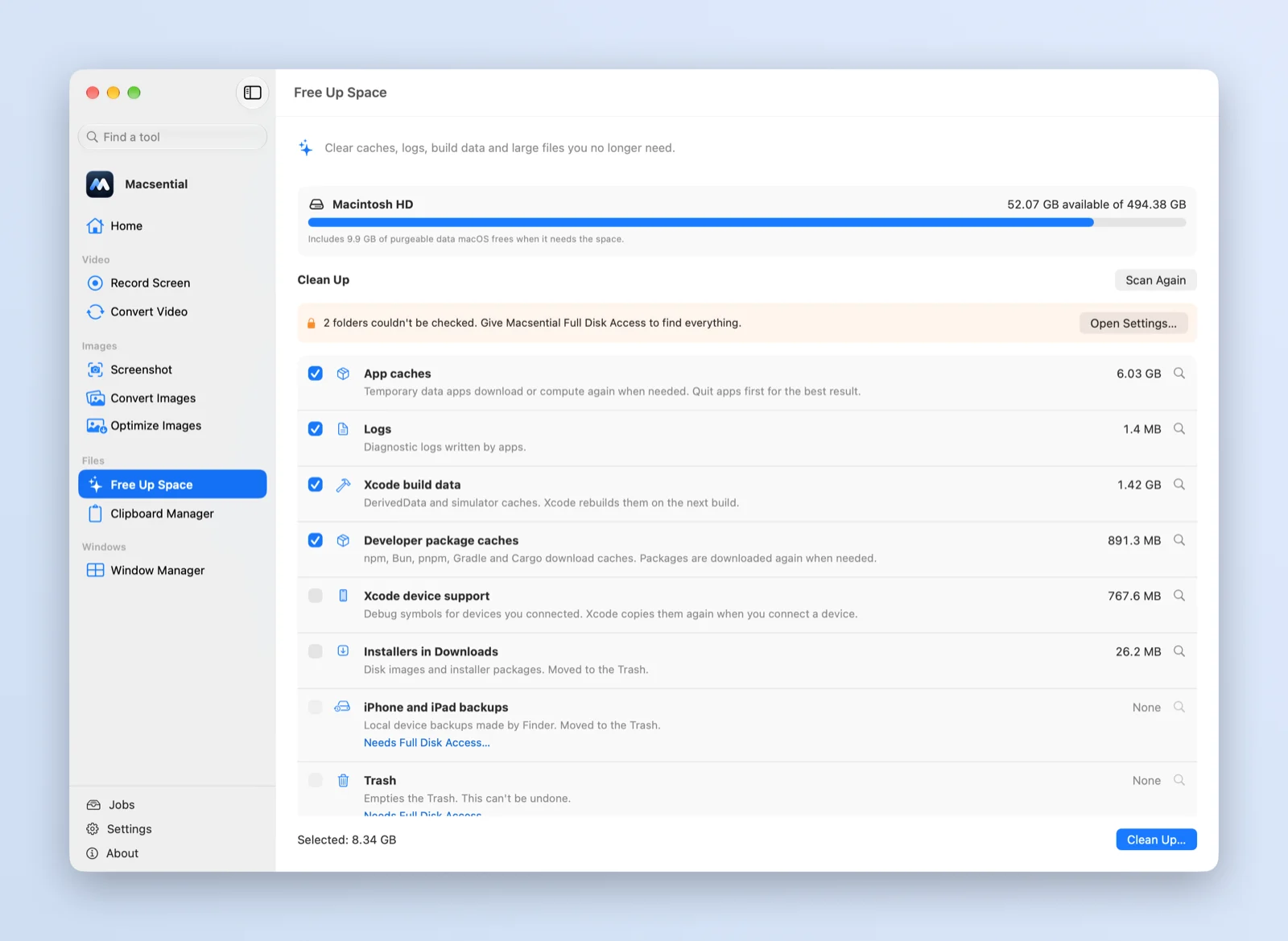
Check the list. App caches, logs, Xcode build data and developer package caches are selected for you. Xcode device support, installers in Downloads, device backups and the Trash are listed with their sizes but left for you to choose.
- 3
Under Large Files, select any file of 500 MB or more you no longer need.
- 4
Click Clean Up…. The confirmation shows how much will be deleted and how much moved to the Trash. Caches, logs and build data are deleted; installers, backups and large files go to the Trash.
What's safe to delete
- Caches and logs in your home folder: apps download or rebuild what they need, though an app may be slower the first time.
- Installers (.dmg, .pkg) in Downloads once the app is installed.
- Xcode build data (DerivedData): Xcode rebuilds it on the next build.
- Old iPhone and iPad backups, if you have a newer backup or back up to iCloud.
Keep anything you can't get again: your documents, photos libraries and the only copy of a backup.
Free space and available space
Apple counts two numbers. Free space is what's physically empty on the disk. Available space adds purgeable caches that macOS can clear when it needs room. If a deleted file doesn't seem to free any space, check it isn't still in the Trash.
If it doesn't work
- I deleted files but the free space didn't change
Files you delete in the Finder go to the Trash first. Empty the Trash, then look at Storage settings again.
- System Data is huge
Apple's definition of System Data includes logs, caches, temporary files and app support files, and macOS manages that category itself. Restarting in safe mode makes the Mac clear certain system caches, which come back as needed. Caches, logs and build data in your home folder can be cleared with Free Up Space.
- Free Up Space says it can't read some folders
macOS blocked those folders. Free Up Space shows which ones and offers a shortcut to Full Disk Access in System Settings; turn it on for Macsential if you want them included.
Related
- Disk Cleaner Clear caches, logs and Xcode build data, and find files over 500 MB, with nothing removed until you confirm.
- Find large files Find the biggest files on your Mac with Storage settings, Finder search, Terminal or Macsential, and remove them safely.
- How to Clear Xcode DerivedData and Free Up Space on Mac Where Xcode keeps DerivedData, Archives, device support and simulators, what is safe to delete, and how to clear each from Xcode or Terminal.
More guides
Questions
Is it safe to delete caches on a Mac?
Cache folders hold files apps can download or rebuild, so clearing them is generally safe. An app may be slower the first time it rebuilds what it needs.
What is System Data on a Mac?
Apple describes it as files that don't fit the other categories: mainly logs, caches, VM files and other system resources, plus temporary files, fonts, app support files and plug-ins. It's managed by macOS, so Storage settings doesn't let you clear it.
Does Optimize Storage delete my files?
It removes Apple TV movies and shows you've already watched and keeps only recent email attachments on the Mac when space is needed. Store in iCloud keeps files in iCloud and only recently opened ones on the Mac.
Does Macsential delete files permanently?
Caches, logs and build data are deleted. Installers, iPhone and iPad backups and large files are moved to the Trash, so you can still change your mind before emptying it.
Do I need Full Disk Access to free up space?
No. Free Up Space works without it and only suggests it when macOS stops it from reading some folders.
Last updated